Overview
Bold Reports allows you to set optional parameters for your reports. This can be useful if you have a report with many parameters and only need to pass values for a few of them. For example, your report has four parameters, and you have to pass values for only two of them, you can set the other two parameters as optional and pass values for any one among the two optional parameters. It can help to reduce the number of errors that users make when running reports, by ensuring that they pass values for all mandatory parameters.
Setting
To set optional parameters in Bold Reports, you need to do the following:
-
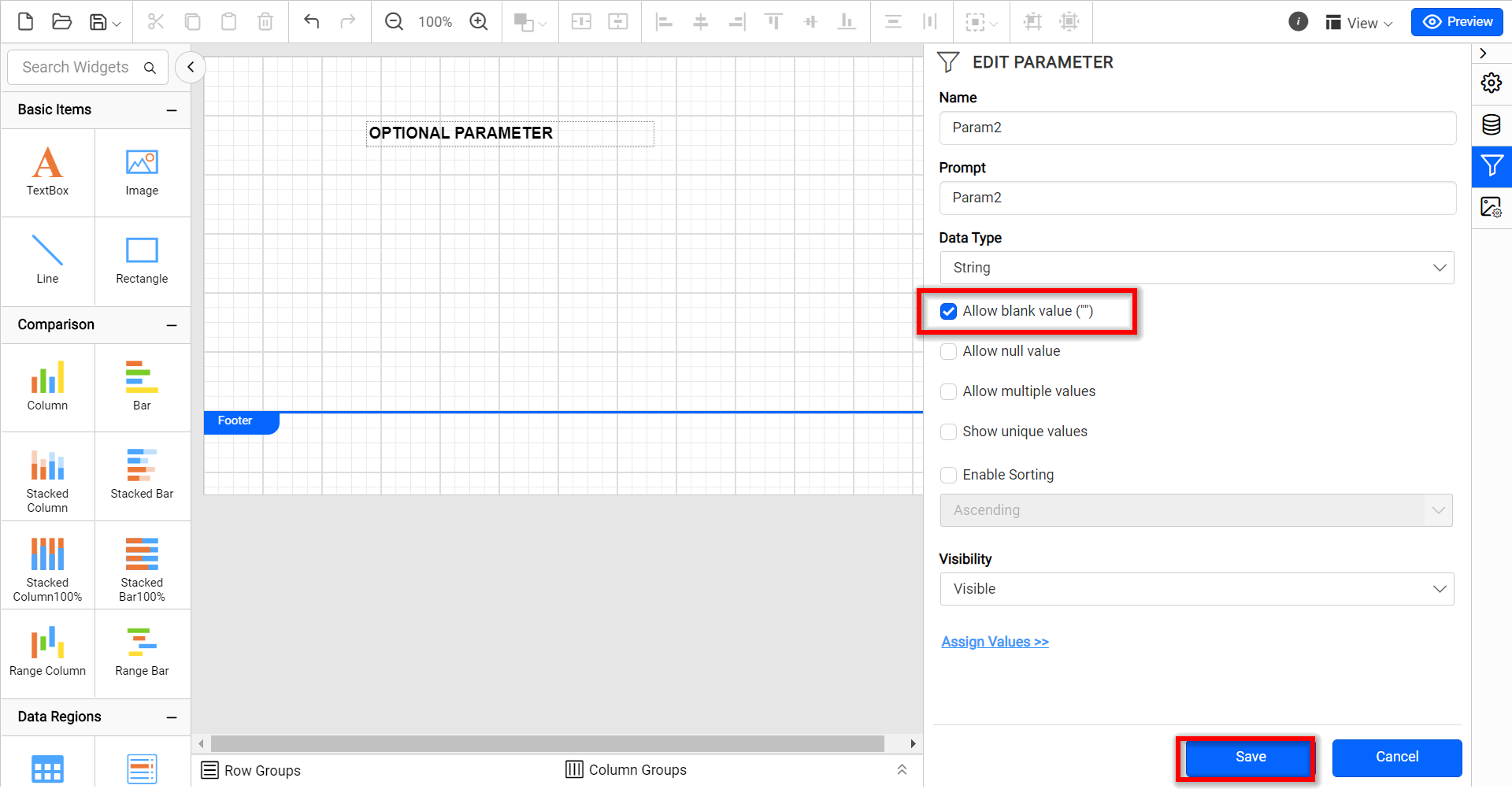
Create a new report with the parameters you want to use. Then edit all the parameters (you need to set them as optional parameters only), enable the Allow blank value (“”) checkbox, and save those parameters.
-
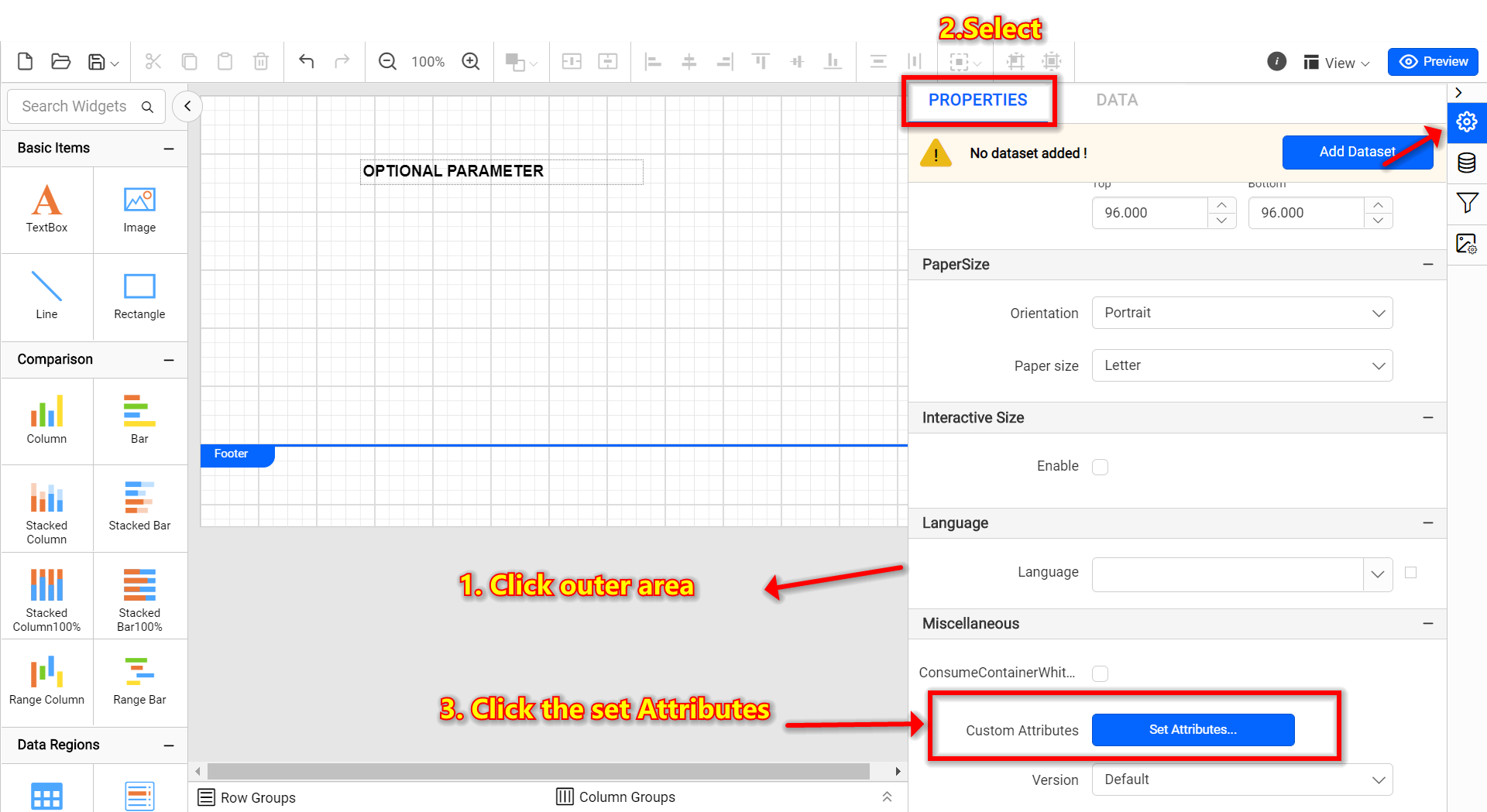
Click on the grey area in your report and navigate to custom properties in the properties panel.
-
Add the following custom property:
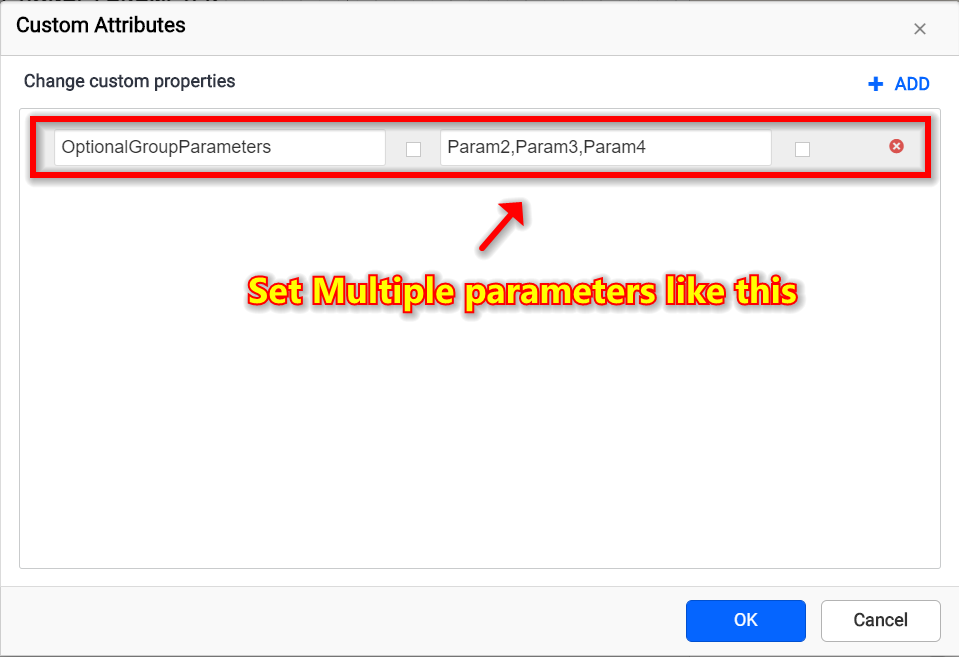
OptionalGroupParameters: Set this property in the following format to use the optional parameter custom property. This property specifies the names of the optional parameters. For example, if the user needs to group the parameters Param2, Param3, and Param4, we need to set the optional parameter custom property in the following format.
-
‘OptionalGroupParameters’ : ‘ReportParameterName1,ReportParameterName2,ReportParameterName3……’
The user must pass values for at least any one of the optional parameters to render the report.
-
Save the report. In our example, we have four parameters (Param1, Param2, Param3, and Param4), in that we have set Param2, Param3, and Param4 as Optional parameters. Now, we can pass the values for at least one optional parameter instead of passing values for all optional parameters (Param2, Param3, and Param4) to render the report.
In the following example, we have passed the values for at least one optional parameter. Then, we passed the values for all non-optional parameters too. So, the report rendered is fine.
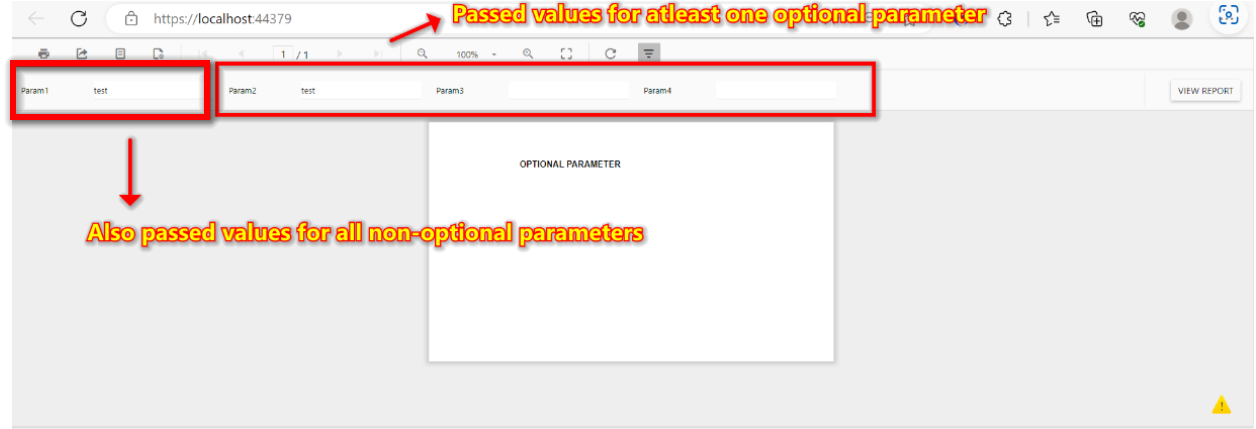
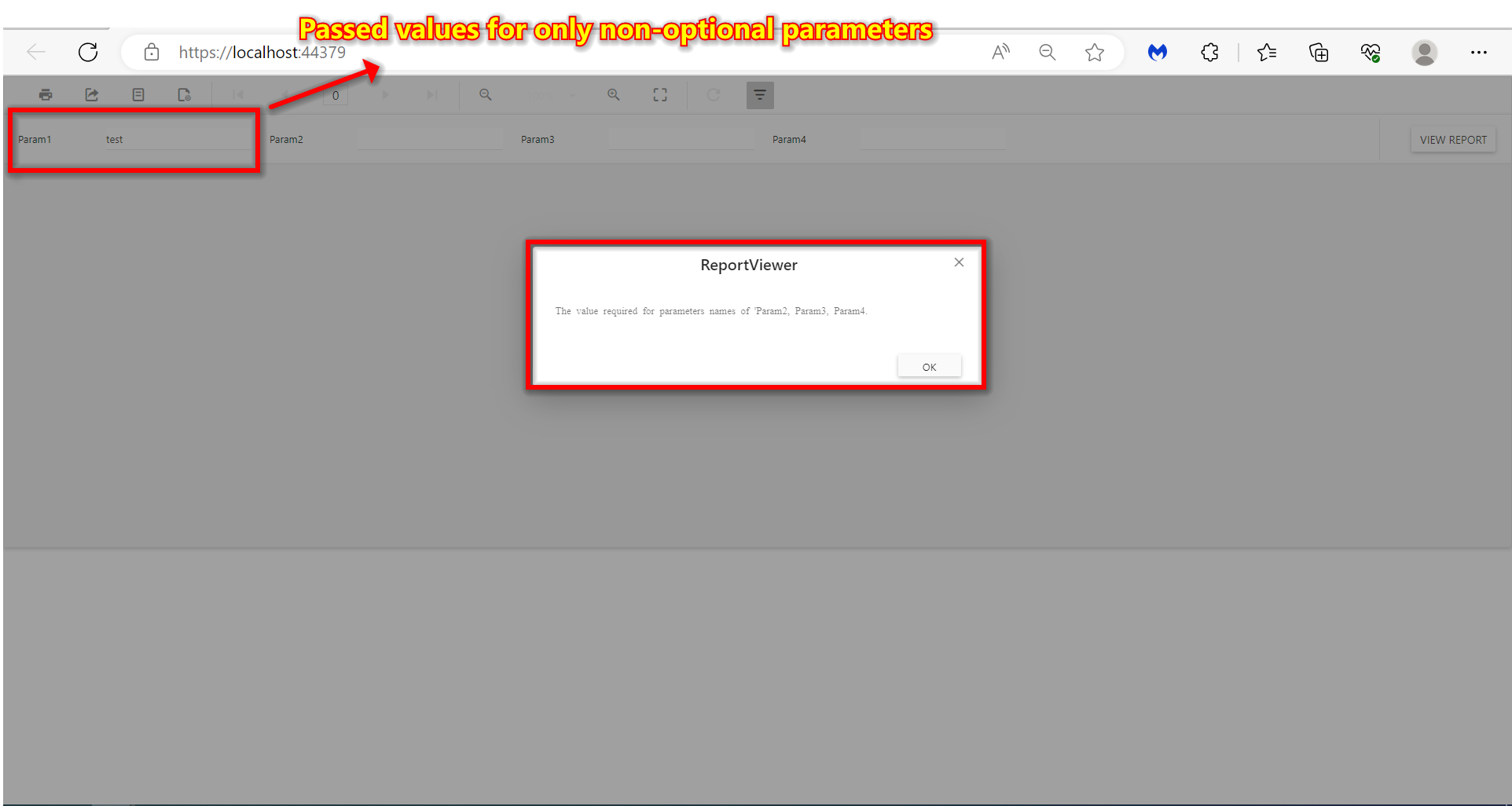
In the following example, we have passed the values only for all non-optional parameters and haven’t passed the values for at least one optional parameter. In this case, it will pop up an error message to the user to pass values for at least one optional parameter to render the report.