

1. Purpose
The Pull & Post Actual Expenses feature supports reconciliation by bringing actual expense totals from mapped GL accounts into recoverable expense categories.
It is executed in two steps:
-
Pull (Preview / Trial Run): Review GL-based expense totals before posting
-
Post (Create Entries): Write the calculated totals into expense categories
Each run generates a notification with a detailed report for review and audit.
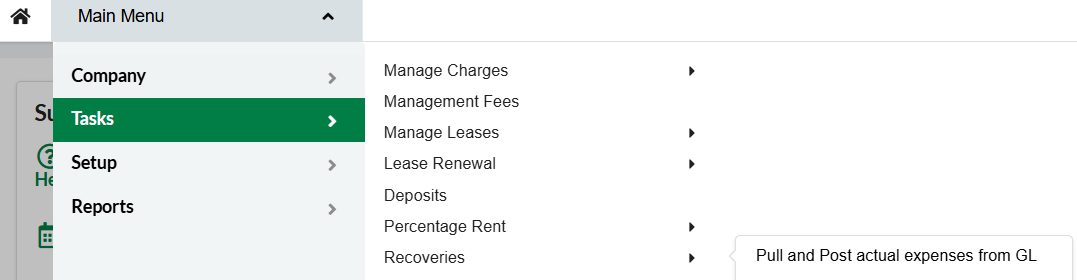
2. How the Workflow Works
Typical user flow:
-
Open the GL Expense Selection screen
-
Apply filters and select recurring charge rows
-
Choose an action:
-
Pull (Preview) – review only
-
Post (Create Entries) – write actuals
-
-
Wait for background processing to complete
-
Open the report via notification or report history
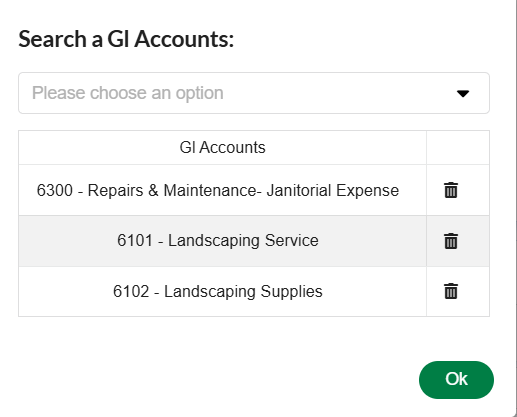
Inside the Lease/Recurring Charges/Recovery Settings
On the Expense Categories/ GL Accounts, you would find the list of GL accounts that the system would try to retrieve from Intacct:

3. Selecting Data to Process
Before running Pull or Post, select the relevant recurring charge records.
Available Filters
-
Property (optional)
-
Lease (optional)
-
Item ID (optional)
-
Recovery End Date (optional)
Row Details Displayed
Each row includes:
-
Lease ID
-
Lease Name
-
Unit
-
Tenant
-
Item ID
-
Recovery Start Date
-
Recovery End Date
-
Recurring Charge ID
Use this information to confirm you are selecting the correct charges and time period.
4. Pull (Preview / Trial Run)
What Happens
When you run Pull:
-
The system identifies expense categories tied to selected charges
-
Retrieves GL balances for mapped accounts within the recovery period
-
Groups results by property, lease, item, and expense category
-
Generates a report and the Preview Journal can be exported for reviewing.
What You’ll See in the Report
For each expense category:
-
Property
-
Lease
-
Item ID
-
Expense Category
-
Detailed GL activity:
-
Date
-
GL Account (number + name)
-
Amount
-
-
Total amount per category
Key Notes
-
No data is written during Pull
-
Categories without GL mappings are excluded
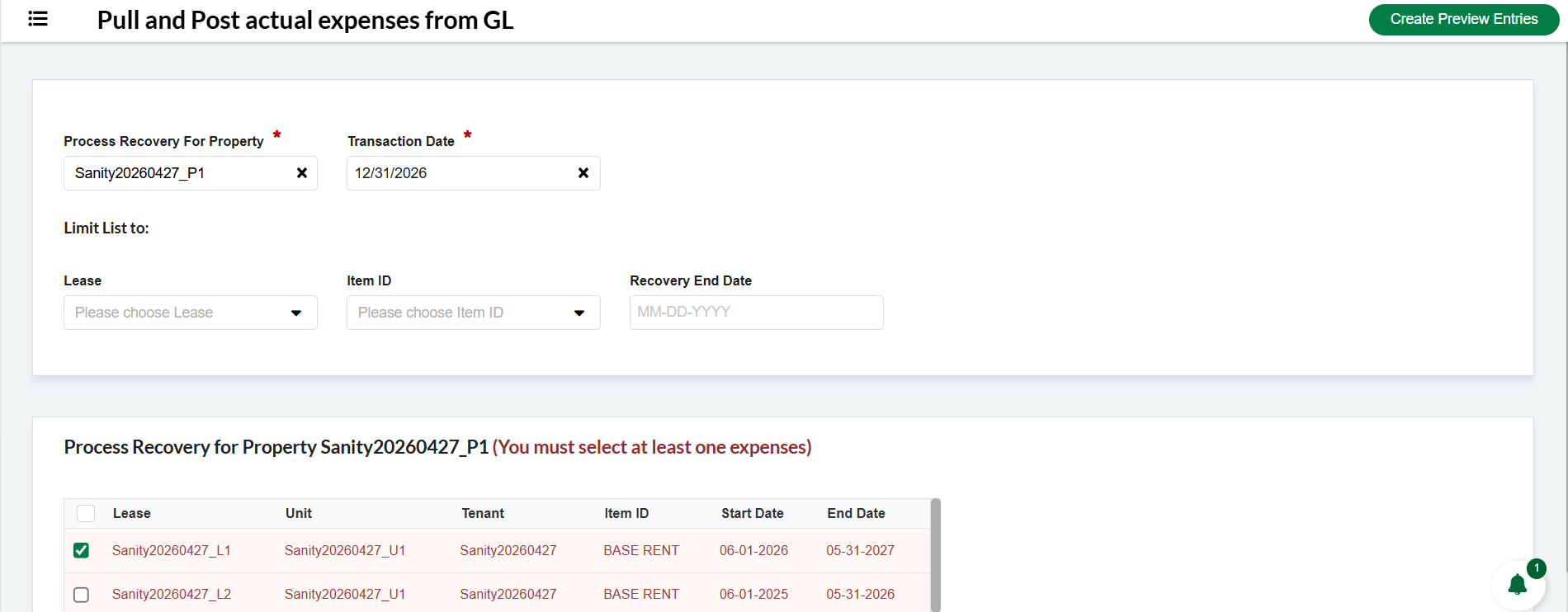
The Filter screen allows the User to select the Property and the Transaction Date, as filters the User would be able to Filter, certain Leases, Item ID or Recovery End Date.
The Preview Journal is created in the background and once ready, would be available on the Notification section.
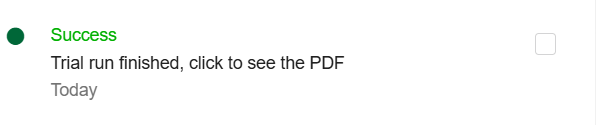
Preview Journal
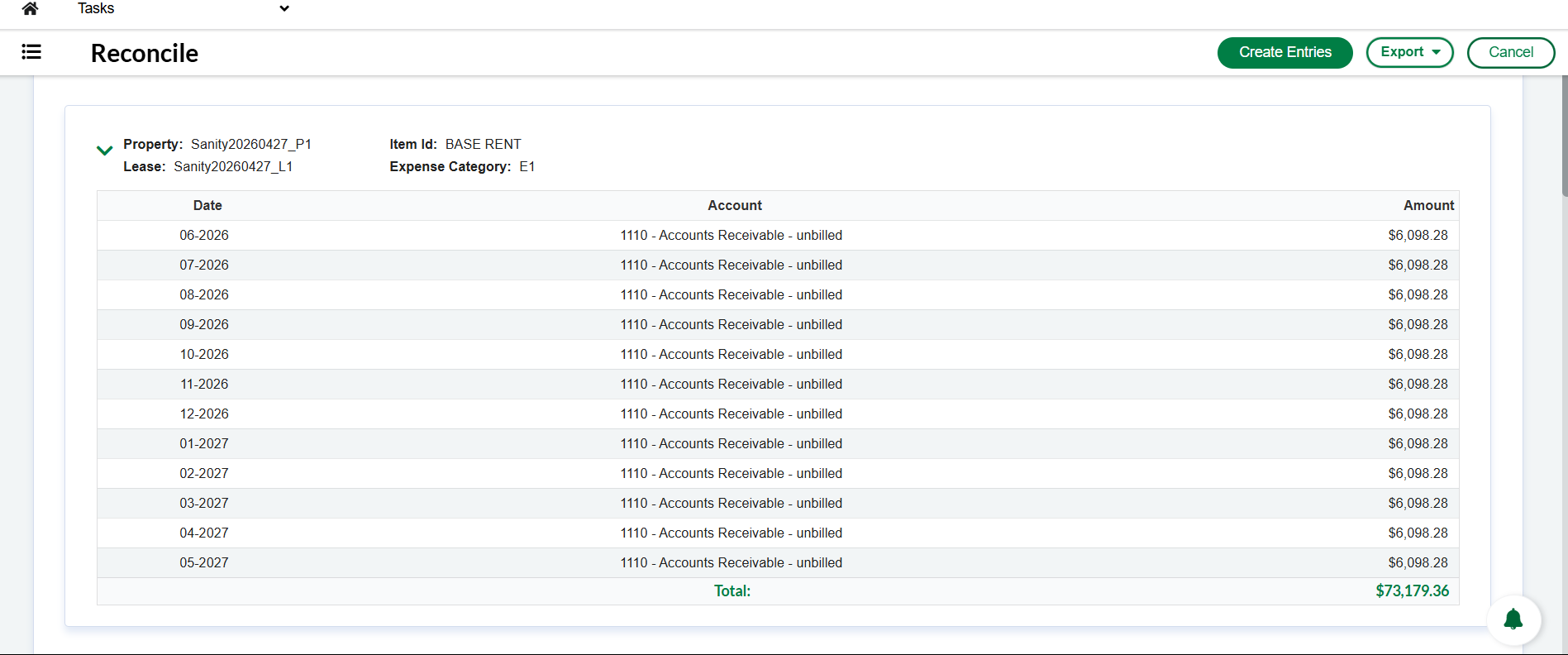
As shown the User has the ability to export this Preview Journal to Excel and PDF.
5. Post (Create Entries)
What Happens
When you run Post:
-
Selected charges and expense categories are resolved
-
GL balances are retrieved for the full recovery period
-
Amounts are summed per expense category
-
Totals are written to the Actual Expense field
-
A report is generated for audit and review

Posting Rules
-
Only non-zero totals are saved
-
Categories without GL mappings are skipped
-
Errors during GL retrieval or saving will interrupt posting and require review
6. User Inputs & Controls
What Users Can Control
-
Filters: Property, Lease, Item ID, Recovery End Date
-
Row selection: Specific recurring charges to include
-
Transaction Date: Included in processing request
About GL Posting Date
-
Exists in the backend/API
-
Not exposed in the UI
-
Typically not required for end users
7. How to Review the Report
Use the report to validate results before or after posting:
-
Confirm Property, Lease, and Item ID
-
Verify expected Expense Categories
-
Review GL detail lines:
-
Correct accounts
-
Dates within recovery period
-
Reasonable amounts and signs
-
-
Compare totals with expected GL activity
If something looks off, check mappings and recovery dates first.
8. Common Use Cases
Preview Before Posting
Run Pull, review results, then proceed with Post.
Process a Single Charge
Use filters (Lease + Item ID + Date) and select only the relevant row.
Missing or Unchanged Categories
Possible reasons:
-
No GL accounts mapped
-
Total equals zero
-
Incorrect selection or filters
9. Troubleshooting
If results are incorrect or missing, check:
-
Filters and selection scope
-
Recovery dates on recurring charges
-
GL account mappings
-
Property/location posting configuration
-
Generated report details
-
Re-run Pull, then Post
When Escalating, Include:
-
Property, Lease, Item ID
-
Recovery period
-
Affected expense categories
-
Report ID and timestamp
-
Supporting screenshots or files
10. Recommended Best Practices
-
Filter narrowly (Property + Lease + Item)
-
Always run Pull before Post
-
Review totals carefully before posting
-
Save/export reports for audit purposes
-
Reconcile posted values with finance expectations
11. Quick Reference
-
Pull (Preview): Retrieves and reports GL balances (no changes made)
-
Post (Create Entries): Writes calculated totals to expense categories
-
Report & Notification: Your primary audit and validation tool