
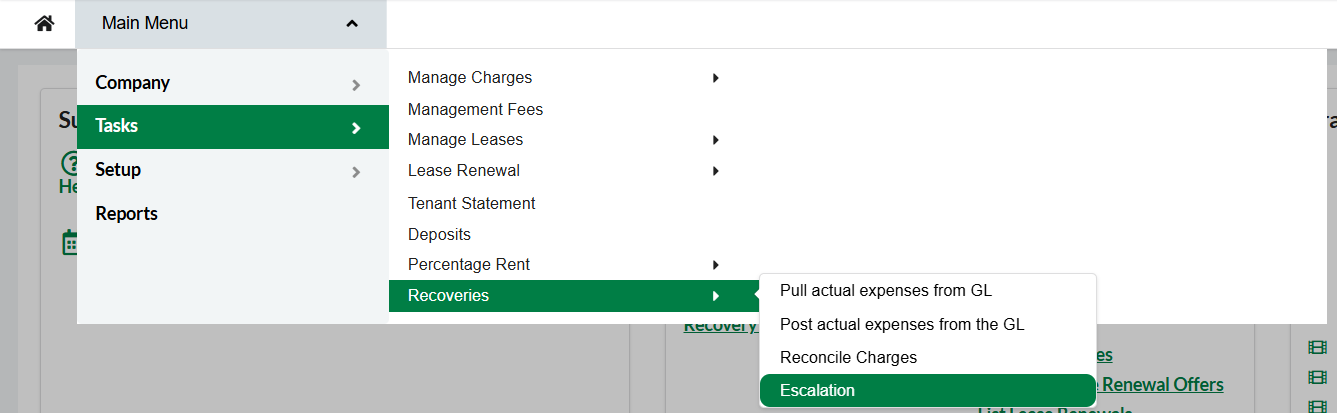
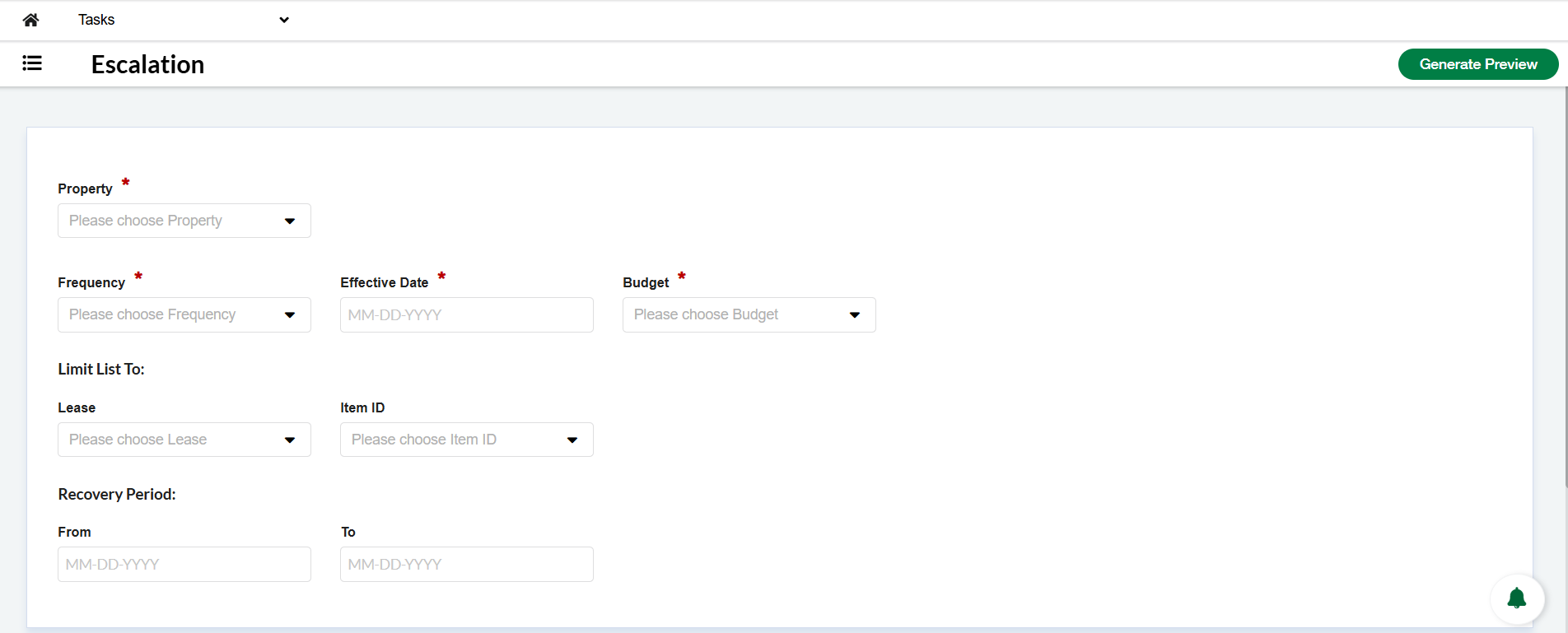
The Escalations process starts by selecting the Property that we want to run escalations for.
The Frequency will be used on the new Recurring Charges created.
The Effective Date will also be used on the new Recurring Charge as the Effective Date of the new Charge Amount.
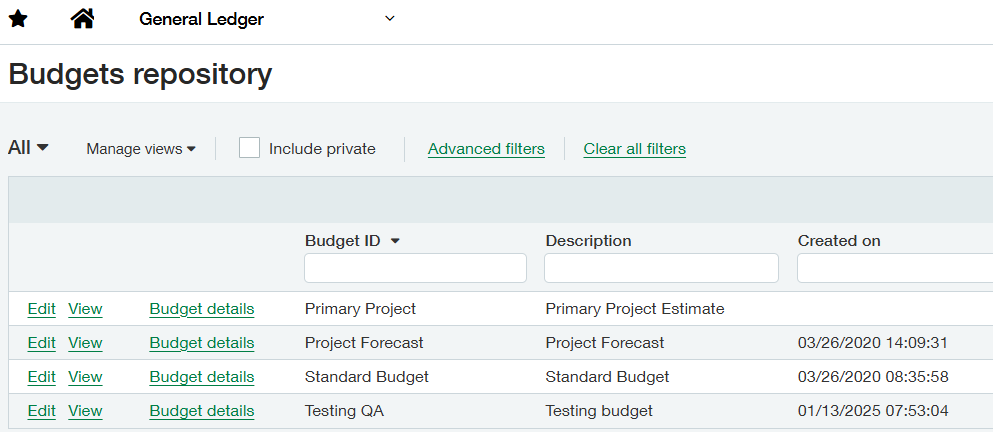
The Budget is retrieved from Intacct, and we will display on the dropdown all the options loaded in Intacct, in the General Ledger/Budget Repository section
Limit list to: Leases and Item ID are filters to shrink the list of options for escalations that are displayed, but they are not mandatory.
Recovery Period is a non-mandatory field, but it will be helpful to run all the charges for the same period; this period is the From and To period of the Recovery section.
After all the Mandatory fields are selected, and clicking on the Generate Preview button, the Preview Journal for Escalations is created.
First, the process displays a pop-up modal, and once the batch process is finished, in the Notification section, the Journal will be available to be displayed.
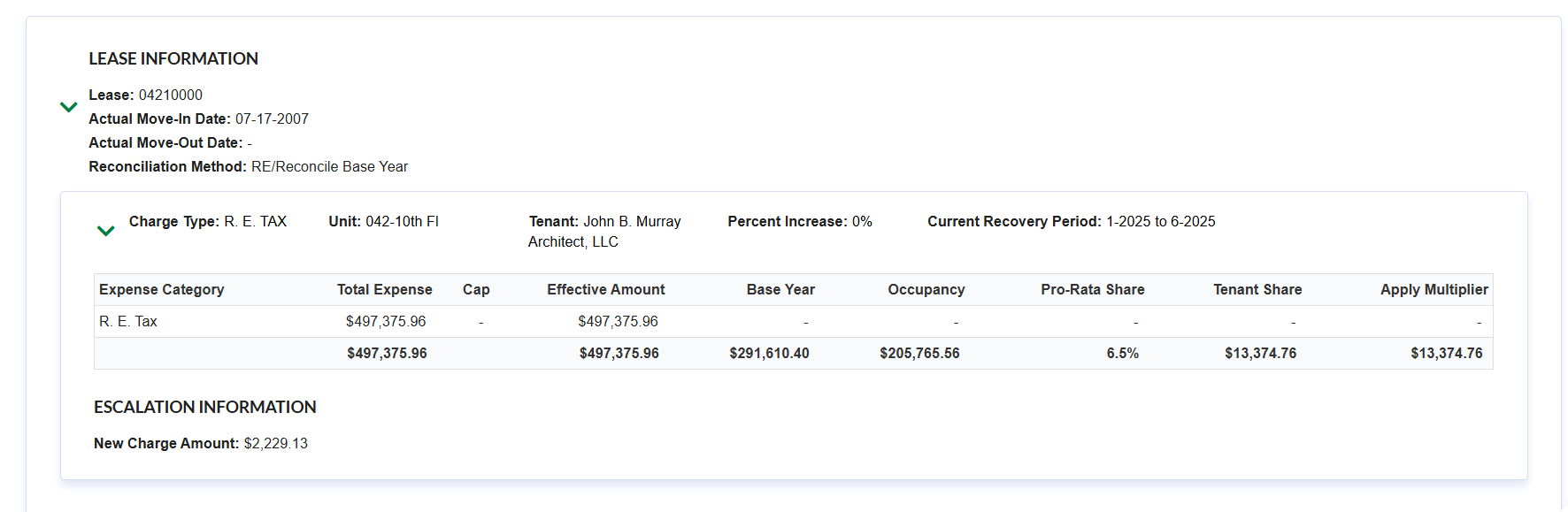
When the Preview Journal for Escalations is displayed, we can see by Lease/Unit/Item ID a section similar to the image displayed above.
On the top left, we can read:
-
The Lease name
-
Actual Move In Date
-
Actual Move-out Date
-
Reconciliation Method
On the Header, we have the Charge type, Unit, Tenant, Percent Increase, and the Current Recovery Period
On each column, we will see displayed:
-
Expense Category: is the Item ID that we are running escalations for
-
Total Expense: summary of budgets read from Intacct, for the selected period
-
Cap: If there is a Cap amount, it will be displayed here
-
Effective Amount: is the Total Expense if it doesn't reach the Cap; if it does, the Cap will be displayed here.
-
Base Year or Stop: The Amount entered by the User when the Recovery is a Stop or Base year. If the User hasn’t selected one of these options, this column would not be displayed.
-
Occupancy: if the unit was not occupied 100% of the Recovery period, the prorate amount will be displayed; if not, 100% of the amount will be displayed.
-
Pro rate share: Is the Percentage that belongs to the Unit displayed.
-
Tenant Share: The Amount that corresponds to the Tenant that is calculated with Occupancy amount * Tenant Share.
-
Apply Multiplier: If there is a multiplier set on the Recovery setup, it will be displayed here, Tenant Share * Multiplier
Standing on the Preview Journal
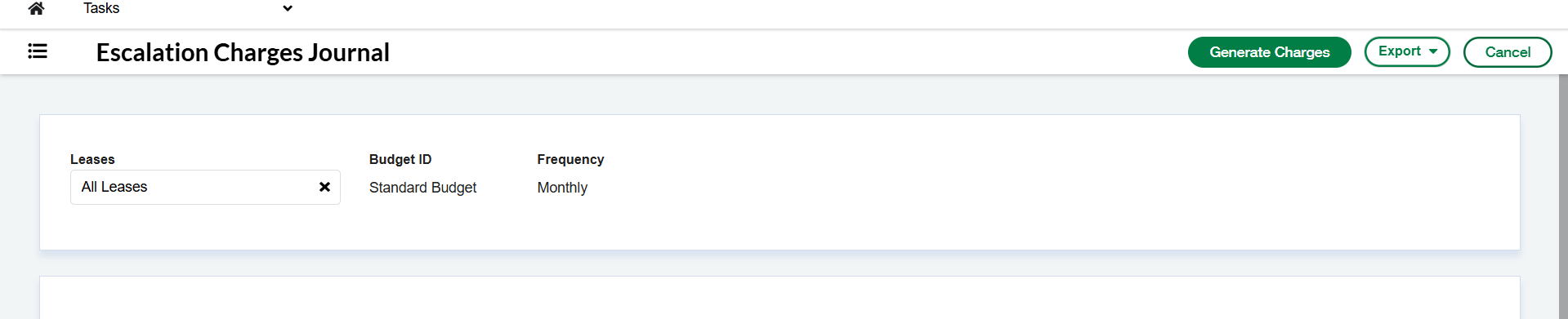
We have the Generate Charges button enabled, which, once clicked, would create all the New Charges for each Recurring Charge run on escalations.
The Export button allows the User to export to Excel or PDF, the Preview Journal displayed.
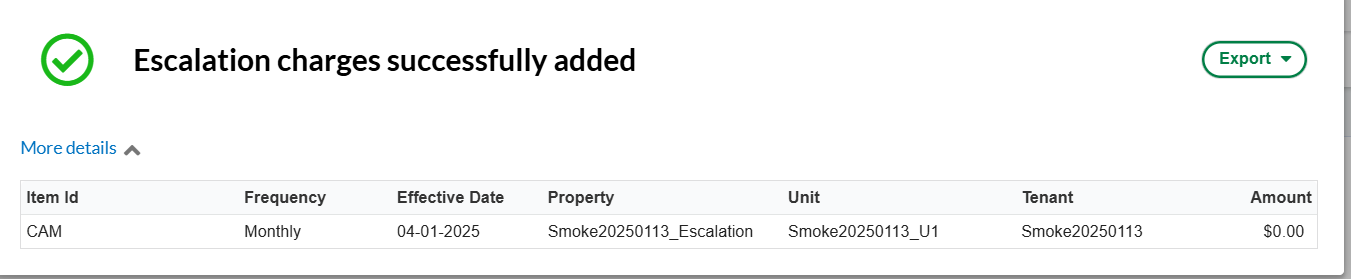
After Generating Charges, the notification of a successful creation is displayed on the Notification section
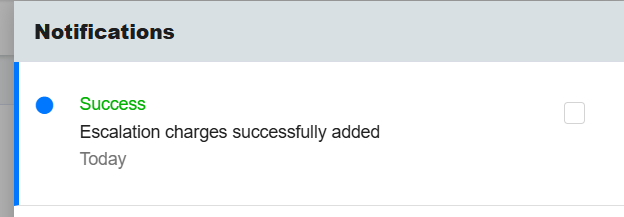
Each Escalation New Charge created will be listed on this modal, and the Export button will export the list to a PDF or Excel file