
Enhanced integration with Sage Intacct Real Estate
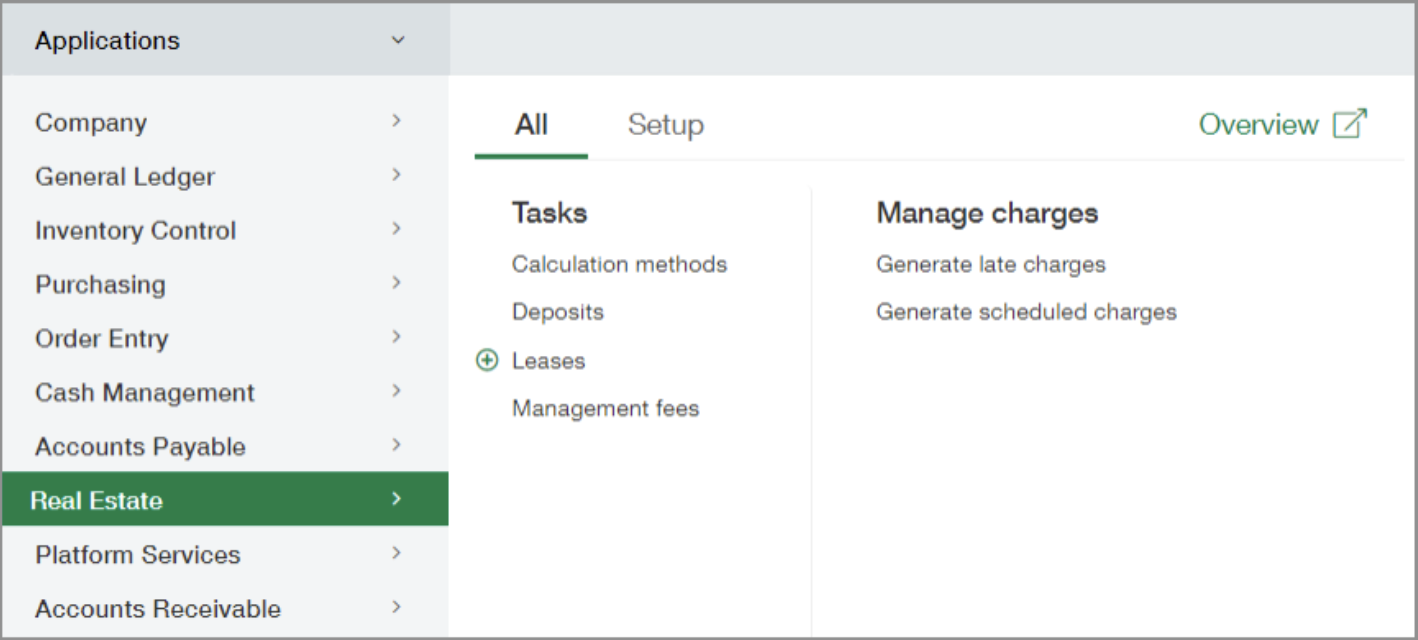
You no longer need to switch back and forth between Sage Intacct and Sage Intacct Real Estate. Access Real Estate directly from the Intacct applications menu.
Details
Sage Intacct Real Estate is now an option on the Company Subscriptions page. Enable the subscription to add Real Estate to the Intacct applications menu. After enabling the subscription, grant permissions to determine who can access the individual items in the Real Estate menu.
How it works
Enable the subscription.
-
Go to Company > Admin > Subscriptions.
-
Select the Real Estate slider so that it turns green.
-
Select Done.
Set up permissions
Sage Intacct Real Estate permissions set in Sage Intacct determine which menu items users can access from the Intacct application menu.
-
Go to the Permissions page.
-
The steps to access this page vary depending on whether your company is using role-based permissions or user-based permissions. For details, see one of the following topics:
-
-
In the row for Real Estate, select Permissions.
-
Each item on the Real Estate menu has a corresponding Menu checkbox.
-
-
Select the appropriate Menu checkboxes to give access to the role or user.
-
Select Save and then select Save again.