
1. Introduction
Purpose
The Move In report provides a property-grouped view of lease move-ins, including lease status, unit details, tenant information, move-in date, and unit status context.
It is intended to support occupancy review, move-in tracking, and vacancy-to-occupancy analysis across properties.
Aggregation Level
The report is displayed at a property-grouped lease detail level.
Each detail row represents one move-in record for a lease and unit within the selected date range and filter context.
2. How to Use the Report
Step 1 - Select Filters
Open the report and set the parameters in the following order:
-
Entity_Id (multi-select)
-
Property Name (multi-select)
-
From Date
-
To Date
-
Lease status (multi-select)
-
SqFtType
Step 2 - Run the Report
After selecting the filters, run the report.
Step 3 - Validate Header Information
At the top of the report, verify the following:
-
Move In Report title
-
Selected From Date value
-
Selected To Date value
-
Execution date timestamp
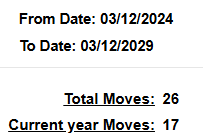
Step 4 - Review the Summary Section
The report includes summary metrics that update based on the selected filters:
-
Total Moves
-
Current Year Moves
These values provide a quick snapshot of move-in activity for the selected reporting context.
Step 5 - Review the Detail Table
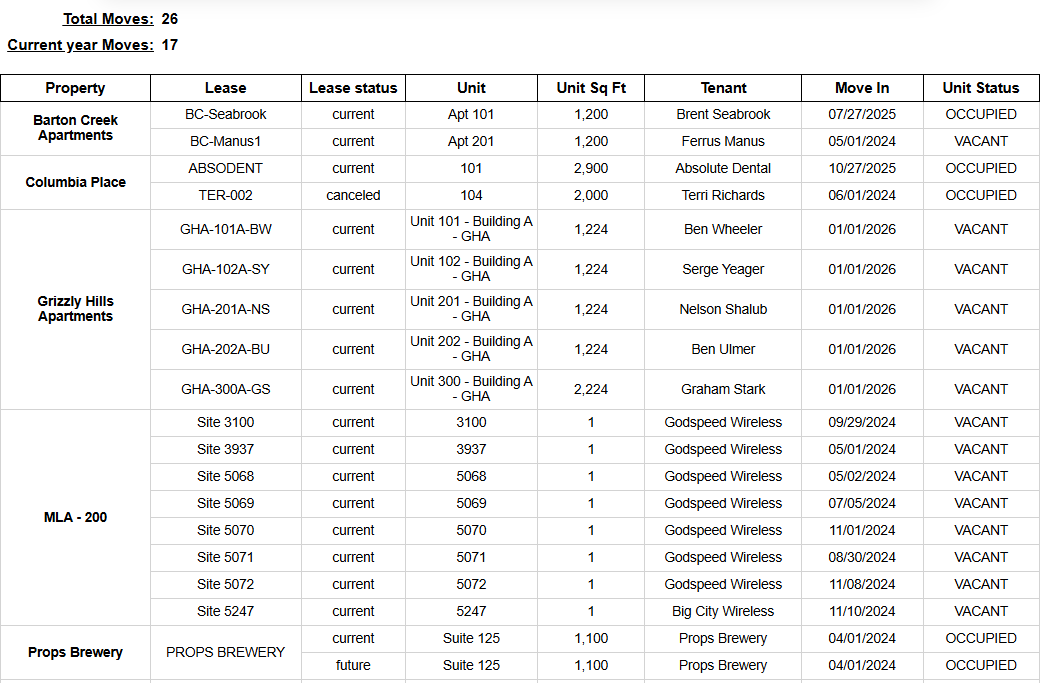
The report is grouped by Property and shows the following rendered headers:
-
Lease
-
Lease status
-
Unit
-
Unit Sq Ft
-
Tenant
-
Move In
-
Unit Status
Step 6 - Review the Report Note
The report includes a note explaining Unit Status:
-
it checks if the unit has a current lease running before the From Date
Expected Display
-
Rows appear under each selected property
-
The chosen date range controls which move-ins are shown
-
Unit Status adds context about occupancy before the report window
3. Technical Explanation
Date and Filter Behavior
This report applies filtering by:
-
From Date
-
To Date
-
Property Name
-
Lease status
-
SqFtType
The rows displayed are leases with its move in date between the selected dates parameters.
Default parameter behavior:
-
From Date defaults to 2 years before today
-
To Date defaults to 3 years after today
-
SqFtType defaults to
Total
This supports both historical review and forward-looking planning in one report.
Table Structure
The layout includes:
-
a property group header
-
a lease-level detail table
-
a note clarifying how Unit Status should be interpreted
The table is designed to help users quickly connect move-in timing with the related unit and tenant context.
Granularity Explanation
The report keeps lease-level detail so users can review each move-in event individually.
Property grouping makes it easier to scan building-by-building, while Unit Status helps interpret whether a unit was already occupied before the selected reporting window.
4. Troubleshooting
No Data Returned
Possible causes:
-
selected date range does not include matching move-ins
-
selected properties are too narrow
-
Lease status excludes relevant leases
Possible fixes:
-
widen From Date / To Date
-
add more Property Name values
-
broaden Lease status
Missing Expected Move-In Record
Possible causes:
-
record falls outside the selected date range
-
record is filtered out by current lease status selection
Possible fixes:
-
expand the date range
-
include additional lease statuses and rerun
Unit Status Seems Unexpected
Possible causes:
-
Unit Status is based on whether a current lease was already running before the selected From Date
Possible fixes:
-
review the From Date used for the report
-
compare the unit's move-in timing with the note shown in the report
Limited Filter Options
Possible causes:
-
available values depend on environment context and earlier selections
Possible fixes:
-
select Entity_Id first
-
then reopen Property Name and Lease status
5. Customization
Common enhancement requests for this report include:
Field Customization
-
add or remove detail columns
-
rename headers to client terminology
-
reorder columns for operational review
Filter and Date Changes
-
adjust default date ranges
-
add new filters
-
change default SqFtType behavior
Reporting Enhancements
-
add summary metrics for move-ins
-
add highlights for recent or upcoming occupancy changes
-
add export-specific formatting for downstream workflows
These modifications can be requested as a report customization through the customer portal.