
1. Introduction
Purpose
The Lease Abstract report helps users review a lease in a single consolidated view. It brings together core lease details, recurring charges, deposit information, lease clauses, and late charge settings so users can understand the main commercial terms of a lease without moving between multiple reports.
The report is a summary of all the critical information regarding a specific lease agreement, including recurring charges, key dates, late fee policies, and other financial or legal clauses.
There is available an extended version of this report with more sections such as Recoveries or Utilities.
Aggregation Level
This report is presented primarily at the lease level.
Each section is organized around a single lease and includes related property, unit, tenant, charge, clause, and deposit information.
2. How to Use the Report
Step 1 - Select Filters
Open the report and set the parameters in the following order:
-
Entity ID (multi-select)
-
Property Name (multi-select)
-
As of Date
-
Lease Status (multi-select)
-
Lease Name (multi-select, optional if you want to narrow the results)
-
Month to Month (multi-select)
Step 2 - Run the Report
After selecting the parameters, run or refresh the report.
Step 3 - Validate Header Information
At the top of the report, review the following:
-
Lease Abstract
-
Execution date
-
As of Date
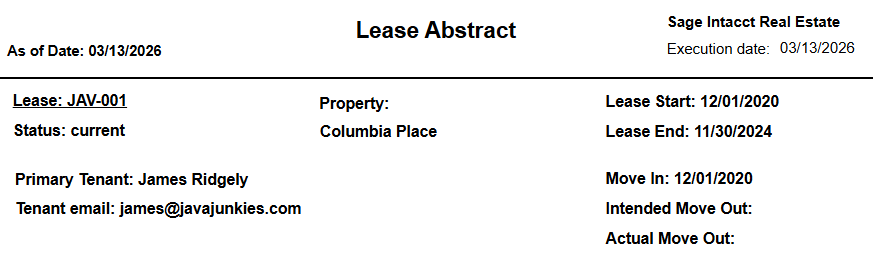
Step 4 - Review the Main Lease Summary
For each lease returned, start with the main lease summary information:
-
Property
-
Status
-
Lease Name
-
Lease Start
-
Lease End
-
Intended Move Out
-
Actual Move Out
-
Move In
-
Primary Tenant
-
Tenant email
Step 5 - Review the Recurring Charges Section
The Recurring Charges section includes:
-
Unit
-
Total SF
-
Item ID
-
Effective Date
-
Status (Historical, Current or Future)
-
Frequency
-
Amount
-
$ Ann/SF
-
$ Mo/SF
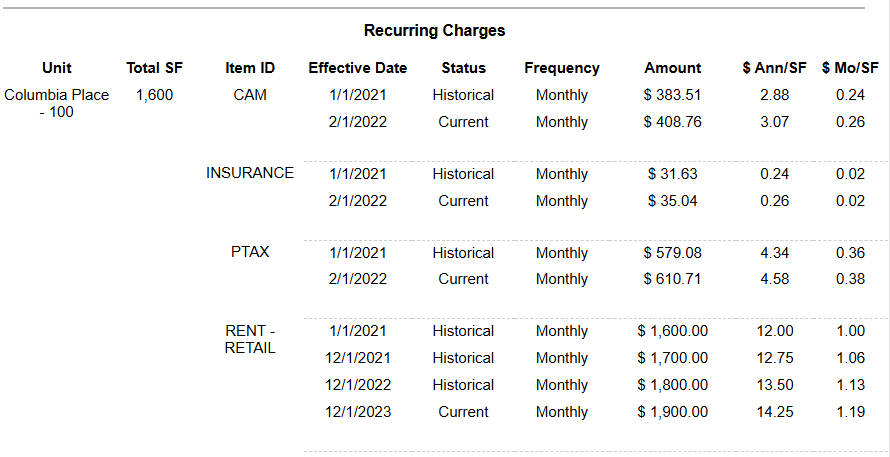
This section outlines the regular charges associated with the lease. It helps users confirm:
-
what the charge is for through Item ID
-
when the charge becomes active through Effective Date increases
-
how often it is billed through Frequency
-
the current charge value through Amount
Step 6 - Review the Late Charges Section
If the lease includes late charge rules, review the Late Charges section and the related General and Steps information:
-
Type
-
Calculation Type
-
Amount / %
-
Grace Days
-
Frequency
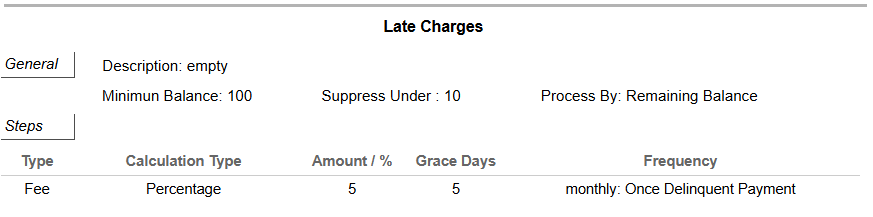
This section provides the late fee policy for the lease, including:
-
whether the fee is calculated as a percentage or flat fee
-
the applied Percentage or fixed amount
-
the number of Grace Days before the fee applies
-
how often the late fee is charged through Frequency
Step 7 - Review the Deposits Section
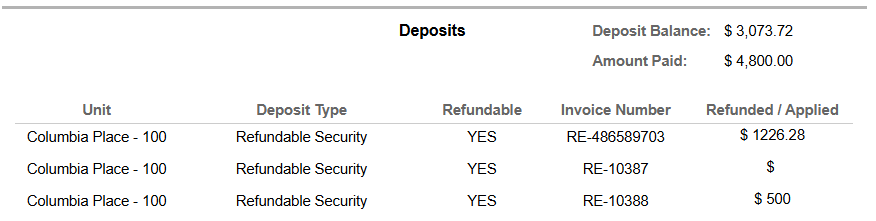
If the lease includes deposits, review the Deposits section. It provides aggregated metrics as Deposit Balance and Amount Paid, and also a detail table with the following fields:
-
Unit
-
Deposit Type
-
Refundable
-
Invoice Number
-
Refunded / Applied
Step 8 - Review the Clauses Section
If the lease includes clauses, review the Clauses section:
-
Category
-
Notification
-
Expiration
-
Unit
-
Description
-
Note

This section highlights important legal or commercial clauses associated with the lease, such as:
-
letters of credit
-
notice-related clauses
-
expiration-based obligations
-
other custom lease agreements
The clause information helps users understand the legal terms and timing requirements tied to the lease.
Expected Display
-
Each returned page represents one lease
-
The report organizes information into separate sections for lease summary, recurring charges, deposits, clauses, and late charges
-
Some sections may be blank if no information exists for that lease and topic
-
The report reflects the lease position as of the selected As of Date
3. Technical Explanation
Date and Filter Behavior
This report provides a point-in-time lease summary based on the selected As of Date.
It is not a transaction history report. Instead, it assembles the key lease information that users typically need for operational or contract review into one lease-based layout.
This report applies filtering using the following parameters:
-
Entity ID
-
Property Name
-
As of Date
-
Lease Status
-
Lease Name
-
Month to Month
Parameter Behavior
The key report parameters are used as follows:
-
Entity allows users to select the legal entity under which the lease is managed
-
Property filters the report to a specific building or location
-
Lease Status allows users to filter by lease state, such as Future, Current, and Terminated
-
As of Date determines the point in time used to evaluate recurring charges and square footage information
These parameters allow users to tailor the Lease Abstract to the exact lease context they want to review.
Table Structure
The report is organized at the lease level because its purpose is to present one consolidated view of each lease.
Within each lease, the report shows supporting detail in separate sections:
-
lease identity and tenant information
-
recurring charge information
-
deposit information
-
clause information
-
late charge setup
This structure is useful because each section supports a different review purpose while staying tied to the same lease.
Granularity Explanation
The top section helps confirm the lease and tenant being reviewed.
The Recurring Charges section explains the current recurring financial terms.
The Deposits section shows deposit-related amounts and status.
The Clauses section highlights important notice, expiration, and descriptive clause details.
The Late Charges section shows how late fees are configured for the lease.
This lease-level organization allows users to perform a contract and operational review without navigating across multiple separate reports.
4. Troubleshooting
No Data Returned
Possible causes:
-
The selected Property Name, Lease Status, or Lease Name values are incorrect
-
The selected As of Date is not appropriate for the lease records you expect to review
-
The current filter combination is too restrictive
Possible fixes:
-
Confirm the selected property, lease status, and lease name values
-
Try a different As of Date
-
Remove some filters and rerun the report
A Lease Is Missing
Possible causes:
-
The lease does not belong to the selected property
-
The lease does not match the selected Lease Status
-
The Lease Name filter is excluding the lease
Possible fixes:
-
Verify that the lease belongs to the selected property
-
Confirm the selected lease status values
-
Remove the Lease Name filter temporarily and rerun the report
Some Sections Appear Blank
Possible causes:
-
The lease may not have deposits, clauses, or late charge information available in the report output
Possible fixes:
-
Confirm that you are reviewing the intended lease
-
Keep in mind that blank sections do not always indicate an error and may simply mean that no information exists for that topic
Amounts Seem Unexpected
Possible causes:
-
The recurring charge values shown may not match the lease or date context you intended to review
Possible fixes:
-
Review the Recurring Charges section first, especially Frequency, Amount, $ Ann/SF, and $ Mo/SF
-
Confirm that you are reviewing the correct lease and As of Date before treating the values as final
5. Customization
Possible enhancements for this report include:
Lease and Tenant Detail Enhancements
-
Adding more lease profile fields
-
Adding more tenant profile details
-
Adding more property location or address information
Section Enhancements
-
Expanding recurring charge information
-
Adding more deposit or clause-related fields
-
Expanding late fee policy details
-
Adjusting the section order to fit operational workflows
Export and Reporting Improvements
-
Refining export formatting for lease review or approval processes
-
Including additional fields relevant to legal, financial, or operational review
These modifications can be requested as a report customization through the customer portal.