
1. Introduction
Purpose
The Property Charge Controls Review report provides a property-by-property review of charge control settings for configured item IDs.
It is intended to help users validate whether key charge control flags are set correctly across properties.
Aggregation Level
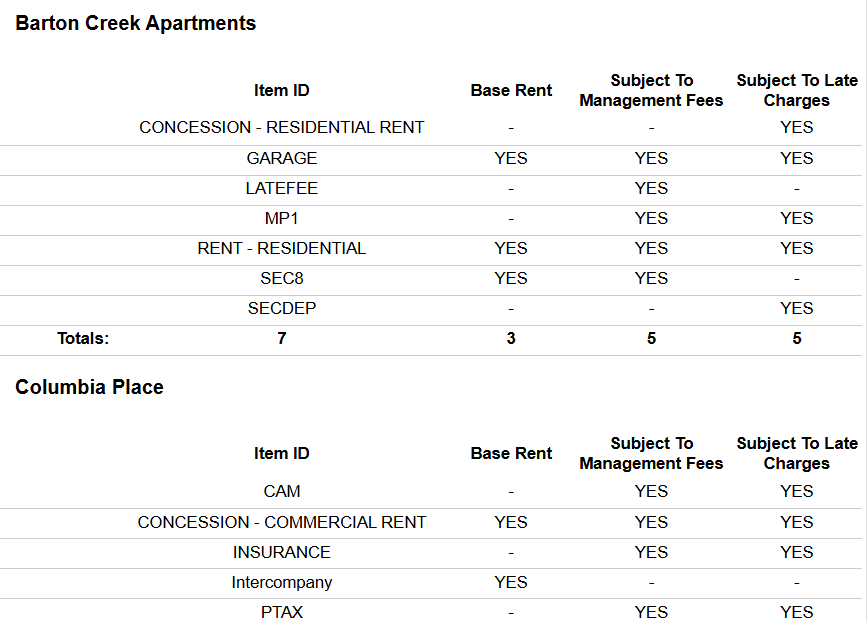
The report is displayed at a property-grouped item detail level.
Each property section contains one row per Item ID, followed by a totals row that summarizes the number of configured items and positive control flags in that property section.
2. How to Use the Report
Step 1 - Select Filters
Open the report and set the parameters in the following order:
-
Entity ID (multi-select)
-
Property Name (multi-select)
Step 2 - Run the Report
After selecting filters, run the report.
Step 3 - Validate Header Information
At the top of the report, verify:
-
Property Charge Controls Review title
-
Execution date
Step 4 - Review Each Property Section
The report is organized by property, with a separate section for each selected property.
Within each property section, the rendered columns are:
-
Item ID
-
Base Rent
-
Subject To Management Fees
-
Subject To Late Charges
Step 5 - Review the Totals Row
Each property section includes a Totals: row showing:
-
Count of distinct Item ID
-
Total rows marked as Base Rent
-
Total rows marked as Subject To Management Fees
-
Total rows marked as Subject To Late Charges
Expected Display
-
Each selected property appears as its own section
-
Flag columns display
YESwhen enabled and-when not enabled -
The totals row helps users quickly spot overall configuration patterns within a property
3. Technical Explanation
Filter Behavior
This report applies filtering by:
-
Entity ID
-
Property Name
There are no additional date-based or status-based user filters in this layout.
Table Structure
The layout is built as repeated property sections:
-
Property name heading
-
Item-level charge control rows
-
A totals row
This makes the report useful for side-by-side review of control settings within each property.
Granularity Explanation
The report keeps item-level detail so users can validate individual charge configurations instead of only seeing summary counts.
The totals row complements that detail by giving a quick property-level check of how many controls are enabled.
4. Troubleshooting
No Data Returned
Possible causes:
-
Selected properties do not have matching charge control records
-
Selected entity context is too narrow
Possible fixes:
-
Select additional Property Name values
-
Verify Entity ID selection
Expected Item ID Is Missing
Possible causes:
-
The item does not have an active charge control record for the selected property
Possible fixes:
-
Confirm the property selection
-
Compare against the property's configured charge control records
Totals Look Lower Than Expected
Possible causes:
-
Totals only reflect records shown in the property section
-
Some controls may not be enabled, so they appear as
-and do not contribute to enabled totals
Possible fixes:
-
Review the item rows under the same property
-
Compare enabled flags against expected property setup
Limited Property Options
Possible causes:
-
Available values depend on the selected entity and environment context
Possible fixes:
-
Select Entity ID first
-
Reopen Property Name after updating the entity selection
5. Customization
Common enhancement requests for this report include:
Field Customization
-
Add more charge control flags
-
Rename headers to client terminology
-
Reorder columns for audit workflows
Summary Enhancements
-
Add portfolio-level totals across all selected properties
-
Add counts of missing or disabled controls
-
Highlight exceptions automatically
Filter and Layout Changes
-
Add item-level filtering
-
Change the grouping or ordering of properties
-
Add export-specific formatting for downstream review
These modifications can be requested as a report customization through the customer portal.