
1. Introduction
Purpose
The Annual Budget Export report provides a budget-ready export view for recurring lease charges starting from the selected As Of Date, compatible with Intacct budgeting templates.
The report generates 12 monthly periods in a single run, allowing users to review and export leasing amounts in a format suitable for downstream financial and budgeting workflows.
This report is typically used when preparing data for budget repositories import into Intacct.
Aggregation Level
The data is displayed at a detailed row level by lease and accounting context.
In practice, each row represents a unique combination of identifiers such as:
-
Property
-
Lease
-
Tenant or Vendor
-
Item
Each row contains one amount per report period column, representing a monthly value within the 12-month reporting window.
2. How to Use the Report
Step 1 - Select Filters
Open the report and set the parameters in the following order:
-
Property Name (multi-select)
-
As Of Date
-
Lease Status (multi-select)
-
Item ID (multi-select)
-
Month to Month (multi-select)
Step 2 - Run the Report
After selecting the parameters, run the report.
Step 3 - Validate the Header Information
At the top of the report, verify:
-
As of Date is displayed correctly.
-
Month labels appear as Month Ended <Month_Name YYYY>.
-
These labels correspond to report period 1 through report period 12.
Step 4 - Review the Table Output
The table will contain the following columns:
-
#
-
Budget repository ID
-
order_entry
-
department_id
-
property_id
-
lease_id
-
tenant_id
-
vendor_id
-
item_id
-
class_id
-
report period 1
-
report period 2
-
report period 3
-
…
-
report period 12
Some template columns may intentionally display “to fill*”, indicating placeholders that may be completed if the file will be imported to Intacct.
Expected Display

-
Broader filter selections return more rows.
-
Narrower filter selections return fewer rows.
-
Each row corresponds to a specific accounting context and includes 12 monthly amounts.
Intacct Budget Import
To succesfully import this report data into an Intacct budget repository the following steps should be done:
-
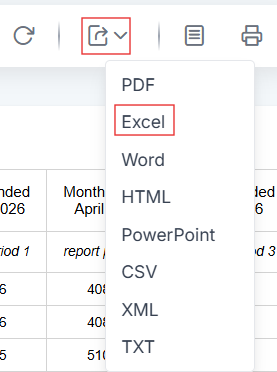
Export the report to an excel file.
-
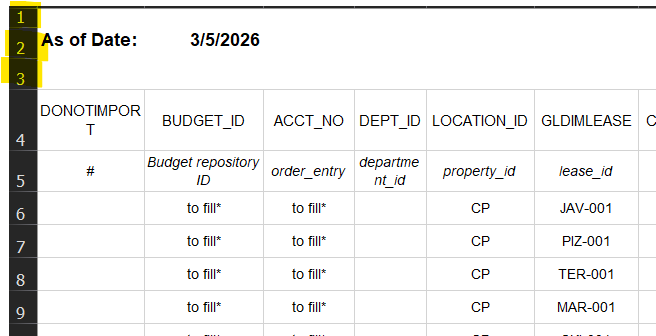
Remove the first three rows in the file: They are used only for the report to display the as of date but are not part of the Intacct template.
-
Fill the columns cotaining the placeholders “to fill*”, with the correct information loaded in Intacct.
-
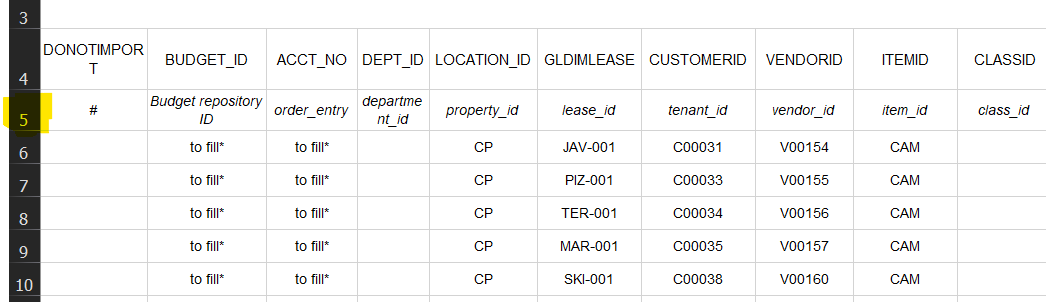
Informative: The row number 5 does not need to be deleted because of the wildcard “#” in the DONOTIMPORT column from the template. This row intends to do a translation between SIRE and intacct fields.
-
Informative: Make sure that all the reporting periods are already created at the working budget repository, if not Intacct would refuse the import.

This ensures you have a budget file ready for import.
For a more detailing step by step budgeting explanation, please visit the following article about the budgeting process.
3. Technical Explanation
12-Month Budget Window
This report calculates leasing amounts across a 12-month window starting from the selected As Of Date.
Table Structure
The table contains two types of columns.
Identifier Columns
The left side of the table contains identifiers that define the accounting and leasing context of the row:
-
Property
-
Lease
-
Tenant or Vendor
-
Item
-
Class
-
Department
-
Order entry reference
These identifiers ensure the exported data can be correctly mapped into accounting or budgeting systems.
Period Columns
The columns report period 1 through report period 12 represent the monthly amounts calculated for each month within the 12-month window.
Each column header shows the actual month using the format:
Month Ended <Month YYYY>
This allows users to easily confirm which calendar month corresponds to each period.
Granularity Explanation
The report intentionally keeps a high level of detail.
Each row retains multiple identifiers because the exported data is designed to be consumed by downstream budgeting and accounting systems.
Instead of aggregating totals annually, the report separates values into individual monthly period columns, which aligns with most financial system import templates.
4. Troubleshooting
No Data Returned
Possible causes include:
-
No Property Name selected
-
Filters that are too restrictive
-
The selected As Of Date falls outside periods with active leasing charges
Possible fixes:
-
Ensure at least one property is selected
-
Broaden the Lease Status, Item ID, or Month to Month filters
-
Try another As Of Date
Missing Item Values
The Item ID filter values depend on the selected property and date context.
If expected values are missing:
-
Select Property Name
-
Select As Of Date
-
Re-open the Item ID filter
This refreshes the available options.
Amounts Appear Lower Than Expected
Verify in SIRE the lease dates and charge timing associated with the affected row.
This report has the logic to prorate any charge with the selected as of date. If you find a mismatch, please feel free to open an incident through the customer portal.
Limited Filter Values
Filter values are restricted to records available in your client environment and current filter context.
If expected options are not available:
-
Confirm the records are active
-
Confirm they belong to the selected property and date context
Intacct Import Fails
The most common reason for this import to fail is because the periods were not created or associated in Intacct.
5. Customization
Common enhancement requests for this report include:
Field Customization
-
Replace placeholder columns (such as to fill*)
-
Add new identifier fields
-
Remove unnecessary fields
Period Adjustments
-
Change the monthly horizon (for example 6, 12, or 18 months)
Reporting Enhancements
-
Add totals (quarterly or full period totals)
-
Rename column headers to match client import templates
-
Adjust default filter selections
These modifications may require changes to the underlying dataset queries or report configuration. They can be created by users (see how to create a new report) or requested as a report customization through the customer portal.