
1. Introduction
Purpose
The Detailed Rent Roll report helps users review current occupancy, lease, and charge information in a detailed format. It is designed to show both a property-level summary and the detailed unit and lease records that make up that summary.
Aggregation Level
This report is presented at multiple levels.
It starts with property-level occupancy and charge totals, then shows unit-level and lease-level detail, including recurring charges and upcoming increase information.
2. How to Use the Report
Step 1 - Select Filters
Open the report and set the parameters in the following order:
-
Entity ID (multi-select)
-
Property Name (multi-select)
-
Unit Floorplan (optional if you want to narrow the output)
-
As of Date
-
Lease Status (multi-select)
-
Item ID (multi-select, optional if you want to limit the charge detail)
-
Month to Month (multi-select)
Step 2 - Run the Report
After selecting the parameters, run or refresh the report.
Step 3 - Validate Header Information
At the top of the report, review the following:
-
Detailed Rent Roll
-
Execution date
-
As of Date
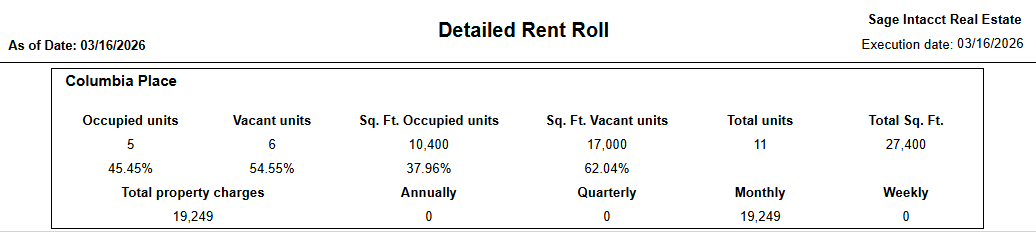
Step 4 - Review the Property Summary Section
At the top of each property section, review the summary area, including:
-
Occupied units
-
Vacant units
-
Sq. Ft. Occupied units
-
Sq. Ft. Vacant units
-
Total units
-
Total Sq. Ft.
-
Total property charges
-
Annually
-
Quarterly
-
Monthly
-
Weekly
Step 5 - Review the Unit Detail Section
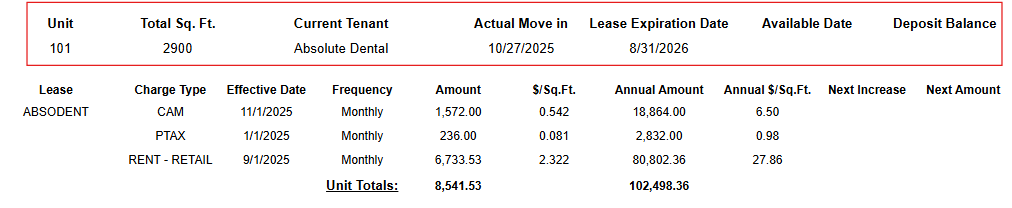
Below the property summary, review the unit-level detail:
-
Unit
-
Total Sq. Ft.
-
Current Tenant
-
Actual Move in
-
Lease Expiration Date
-
Available Date
-
Deposit Balance
Step 6 - Review the Lease Charge Section
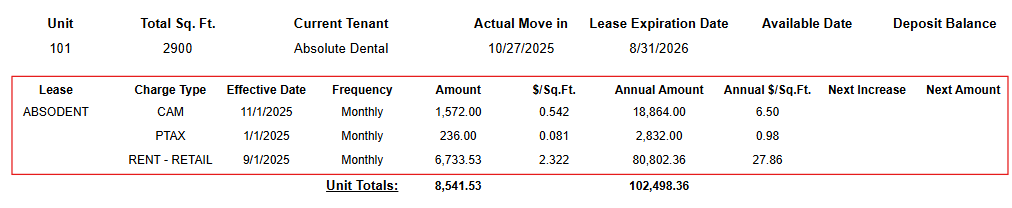
For each lease, the report then shows the detailed charge section:
-
Lease
-
Charge Type
-
Effective Date
-
Frequency
-
Amount
-
$/Sq.Ft.
-
Annual Amount
-
Annual $/Sq.Ft.
Step 7 - Review the Upcoming Increase Fields
If available, review the upcoming rent change fields:
-
Next Increase
-
Next Amount
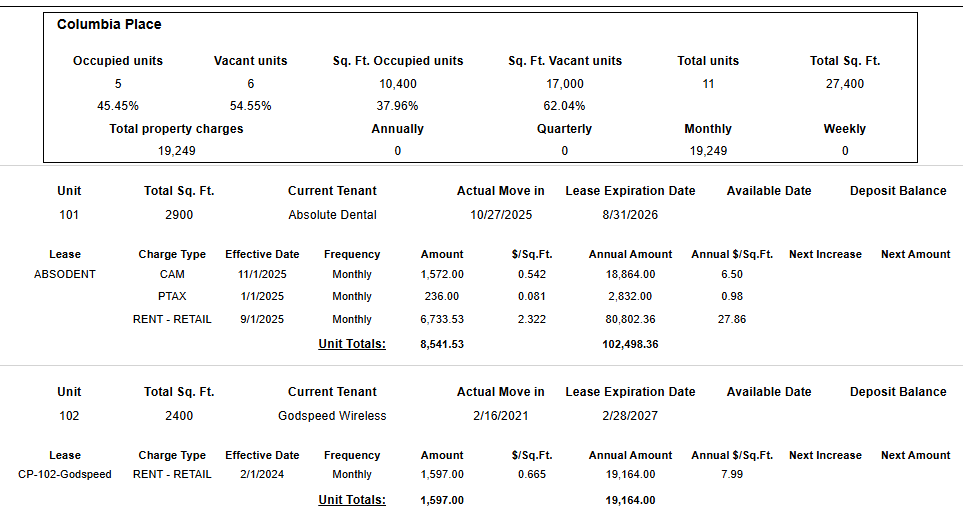
Use the property summary to understand the overall position of the property, then use the unit and charge detail to review the specific leases and charges contributing to those totals.
Expected Display
-
Results are grouped by Property with a page break
-
Each property section includes a summary area
-
Bellow the summary, records are grouped per lease with unit and Item Id level information.
-
The report reflects the lease and charge position as of the selected As of Date
-
Upcoming increase information appears only if a next increase is available for the lease
3. Technical Explanation
Date and Filter Behavior
This report provides a point-in-time detailed rent roll based on the selected As of Date.
It is not a historical trend report. Instead, it shows the current lease and charge position for the selected properties, along with the next known increase information where available.
This report applies filtering using the following parameters:
-
Entity ID
-
Property Name
-
Unit Floorplan
-
As of Date
-
Lease Status
-
Item ID
-
Month to Month
Table Structure
The report is structured at several levels so users can review:
-
property-level occupancy and charge totals
-
lease-level display with unit-level occupancy and recurring charges information
-
next increase information tied to corresponding charge within the lease
This layout is useful because users often need both the summarized property picture and the detailed charge records in the same report.
The top property section helps users understand occupancy counts, square footage, and total property charges by billing frequency.
The unit and lease detail then shows the tenant, dates, deposit balance, and recurring charges that explain the property totals.
Granularity Explanation
The charge section also annualizes recurring amounts in the report layout, which helps users compare charges that may be billed monthly, quarterly, or annually within the same output.
Because the report includes summary metrics, unit detail, lease charges, and next increase information together, it supports both operational review and detailed financial validation.
4. Troubleshooting
No Data Returned
Possible causes:
-
The selected Property Name, Lease Status, and Item ID values are incorrect
-
The As of Date is not appropriate for the leases you expect to review
-
Filters such as Unit Floorplan, Item ID, or Month to Month are too restrictive
Possible fixes:
-
Confirm the selected property, lease status, and item values
-
Try a different As of Date
-
Remove optional filters and rerun the report
Expected Units or Leases Are Missing
Possible causes:
-
The units do not belong to the selected properties
-
The lease does not match the selected lease status
-
A current filter selection excludes the expected record
Possible fixes:
-
Verify that the units belong to the selected properties
-
Confirm that the lease matches the selected lease status
-
Re-run the report with fewer filters to determine which selection is excluding the record
Charge Totals Seem Unexpected
Possible causes:
-
The detail rows include recurring amounts with different billing frequencies
-
The report converts recurring charges into annual values for comparison in the layout
Possible fixes:
-
Review the detailed charge rows for Frequency, Amount, Annual Amount, and Annual $/Sq.Ft.
-
Compare the charge detail against the property summary metrics
Next Increase Fields Are Blank
Possible causes:
-
Some leases may not have a next increase available in the report output
Possible fixes:
-
Confirm that you are reviewing the intended lease
-
Keep in mind that blank increase values do not always indicate an error and may simply mean that no upcoming increase is currently defined for that lease
5. Customization
Possible enhancements for this report include:
Field and Layout Changes
-
Adding more unit or lease detail fields
-
Including additional charge attributes
-
Adjusting grouping or section order for review workflows
Summary Enhancements
-
Expanding the property summary metrics
-
Adding more occupancy or charge summary measures
Export and Reporting Improvements
-
Refining export formatting for leasing, operations, or finance teams
These modifications can be requested as a report customization through the customer portal.