
1. Introduction
Purpose
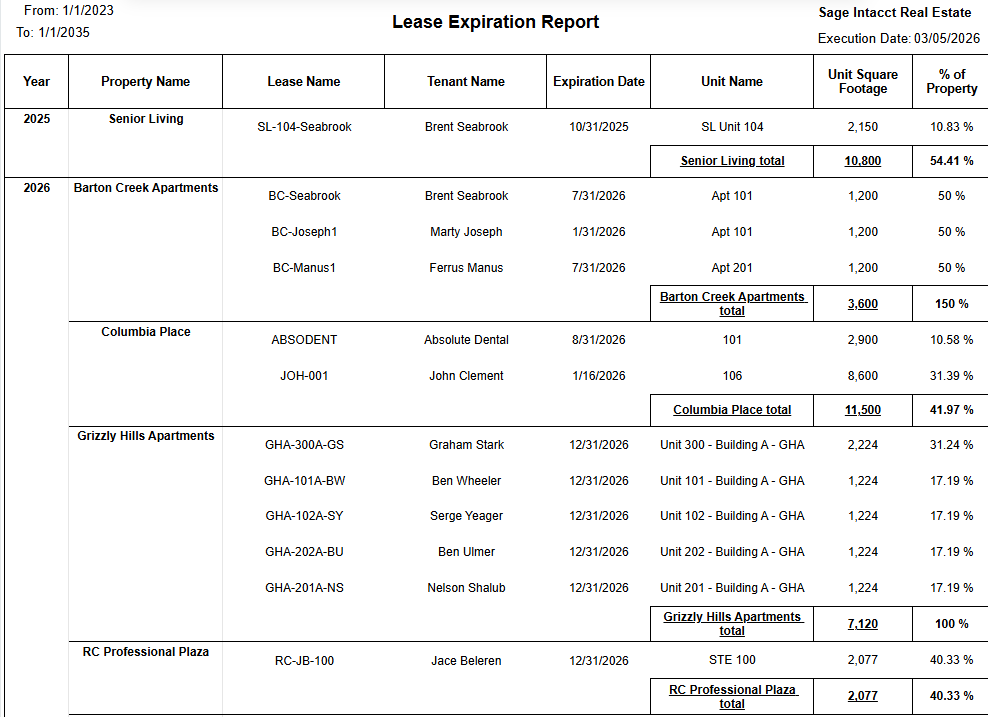
The Lease Expiration report provides a grouped view of lease end dates, tenant and unit information, and each unit’s occupied square footage contribution within a property.
The report is designed to help users monitor upcoming lease expirations and understand the potential operational impact at the unit and property level.
It is commonly used by property management and asset management teams to identify leases approaching expiration and plan follow-up actions.
Aggregation Level
The report is displayed in a multi-level hierarchy.
The structure follows this grouping order:
-
Year
-
Property Name
-
Lease-level detail rows
Within each property group:
-
Each row represents one lease and unit record
-
A property total row appears after the detail rows for that property
2. How to Use the Report
Step 1 - Select Filters
Open the report and set the parameters in the following order:
-
Entity ID (multi-select)
-
Property Name (multi-select)
-
From Date
-
To Date
-
Lease Status (multi-select)
Step 2 - Run the Report
After selecting the parameters, run the report.
Step 3 - Validate Header Information
At the top of the report, verify the following:
-
Lease Expiration Report title
-
Selected From Date and To Date
-
Execution Date indicating when the report was generated
Step 4 - Review the Table Output
The table is grouped by Year and Property Name.
Each group contains lease-level detail rows followed by a property summary row.
Detail Columns
The report displays the following fields:
-
Lease Name
-
Tenant Name
-
Expiration Date
-
Unit Name
-
Unit Square Footage
-
% of Property
Property Summary Row
After the detail rows for each property, a summary row appears containing:
-
<Property Name> total
-
Total Unit Square Footage
-
Total % of Property
Expected Display
-
Rows appear under each Year and Property grouping
-
Only leases matching the selected date range and lease status filters are displayed
-
Property summary rows appear after the detail rows for each property
3. Technical Explanation
Date and Status Behavior
This report applies two main filters:
-
A date filter using From Date and To Date applied to lease expiration dates
-
A multi-select Lease Status filter
The default date range is intentionally broad:
-
From Date:
1/1/2023 -
To Date:
1/1/2035
This allows users to review both current and long-term lease expirations without resetting the filters each time the report runs.
Table Structure
The report combines detail rows and summary rows.
Detail rows display the lease and unit records that match the filters.
Each property group ends with a property total row summarizing the results for that property.
The % of Property column represents the share of each unit’s square footage relative to the property's total square footage.
Granularity Explanation
The report maintains lease and unit-level granularity so that users can identify specific leases approaching expiration.
At the same time, property-level totals allow users to quickly understand the impact of those expirations within the property.
This combination supports both:
-
Operational follow-up, where individual leases need to be reviewed
-
Portfolio analysis, where property-level totals provide broader context
4. Troubleshooting
No Data Returned
Possible causes:
-
The selected date range does not include leases with matching expiration dates
-
The Property Name or Entity ID selection is too restrictive
-
The Lease Status filter excludes relevant records
Possible fixes:
-
Widen the From Date and To Date range
-
Select additional properties or entities
-
Include additional Lease Status values
Missing Expected Lease
Possible causes:
-
The lease expiration date is outside the selected range
-
The lease status is not included in the current selection
Possible fixes:
-
Expand the date range
-
Include additional lease statuses and rerun the report
Property Totals Look Unexpected
Possible causes:
-
Property totals only include rows that passed the current filters
-
Percentage values may be rounded for display
Possible fixes:
-
Verify the selected filters
-
Compare the detail rows listed under the same property total line
Limited Filter Options
Possible causes:
-
Filter values depend on the current environment context and other selected filters
Possible fixes:
-
Verify the Entity ID selection first
-
Re-open the Property Name and Lease Status filters after updating the entity selection
-
Confirm that the expected records are active in your environment
5. Customization
Common enhancement requests for this report include the following.
Field Customization
-
Add or remove displayed columns
-
Rename column headers to match client terminology
-
Reorder columns to support export or operational workflows
Filter and Grouping Changes
-
Adjust the default date range
-
Add new report filters
-
Change the grouping order (for example, property-first views)
Reporting Enhancements
-
Add highlights for leases approaching expiration
-
Add additional subtotal levels
-
Add export-specific formatting for downstream systems
These modifications can be requested as a report customization through the customer portal.