
1. Introduction
Purpose
The Move Out report provides a property-grouped view of leases expected to move out within a selected date window, along with unit, tenant, square footage, and termination details.
It is intended to support move-out planning, vacancy forecasting, and operational follow-up on lease exits.
Aggregation Level
The report combines two levels of information:
-
Summary metrics at report level
-
Property-grouped lease detail rows
Each detail row represents one lease move-out record within the selected filter context.
2. How to Use the Report
Step 1 - Select Filters
Open the report and set the parameters in the following order:
-
Entity_Id (multi-select)
-
Property Name (multi-select)
-
From Date
-
To Date
-
SqFtType
-
Lease Status (multi-select)
Step 2 - Run the Report
After selecting the parameters, run the report.
Step 3 - Validate Header Information
At the top of the report, verify the following:
-
Move Out Report title
-
Selected From Date and To Date values
-
Report Date timestamp indicating when the report was generated
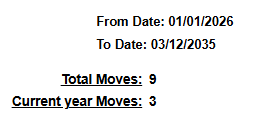
Step 4 - Review the Summary Section
The report includes summary metrics that update based on the selected filters:
-
Total Moves
-
Current Year Moves
These values provide a quick snapshot of move-out activity for the selected reporting context.
Step 5 - Review the Detail Table
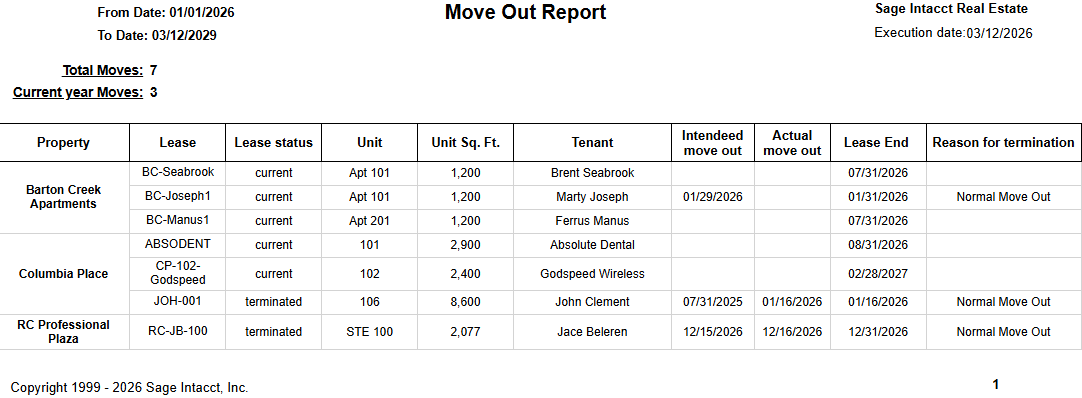
The detail table is grouped by Property and displays the following columns:
-
Lease
-
Lease Status
-
Unit
-
Unit Sq. Ft.
-
Tenant
-
Intended Move Out
-
Actual Move Out
-
Lease End
-
Reason for Termination
Expected Display
-
Rows appear under each selected Property
-
The selected date range controls which move-out records are displayed
-
Summary metrics and detail rows reflect the same filter context
3. Technical Explanation
Date and Filter Behavior
This report applies filtering using the following parameters:
-
From Date
-
To Date
-
Property Name
-
Lease Status
-
SqFtType
Default Parameter Behavior
The report uses the following default values:
-
From Date defaults to today
-
To Date defaults to 3 years from today
-
SqFtType defaults to Total
This setup supports both near-term move-out planning and longer-horizon vacancy review.
Table Structure
The report contains two functional sections:
Summary Section
The summary section displays move-related counts, including:
-
total move-outs in the filtered result set
-
current year move-outs considers only the actual or the intended move out date, doesn't count the lease end date. And it is compared to the selected From date parameter.
Detail Section
The detail section is grouped by Property and focuses on move-out timing and lease context.
The rows displayed are leases with its end date between the selected dates parameters.
Granularity Explanation
The report maintains lease-level granularity so users can review each move-out individually.
This level of detail supports operational workflows such as:
-
move-out planning
-
vacancy forecasting
-
lease exit follow-up
Property grouping makes it easier to review activity by location.
4. Troubleshooting
No Data Returned
Possible causes:
-
The selected date range does not include matching move-out records
-
The selected properties are too restrictive
-
The Lease Status filter excludes relevant leases
Possible fixes:
-
Widen the From Date and To Date range
-
Add more Property Name values
-
Broaden the Lease Status selection
Missing Expected Lease
Possible causes:
-
The lease falls outside the selected date window
-
The lease status is not included in the current filters
Possible fixes:
-
Expand the date range
-
Include additional lease statuses and rerun the report
Summary Counts Look Lower Than Expected
Possible causes:
-
The summary section only reflects leases that passed the current filters
Possible fixes:
-
Review the active filters
-
Temporarily broaden the filters and compare totals
Limited Filter Options
Possible causes:
-
Available filter values depend on the current environment context and earlier selections
Possible fixes:
-
Select Entity_Id first
-
Re-open Property Name and Lease Status filters after updating the context
-
Confirm the relevant records are active in your environment
5. Customization
Common enhancement requests for this report include the following.
Field Customization
-
Add or remove detail columns
-
Rename column headers to match client terminology
-
Reorder columns for operational review
Filter and Date Changes
-
Adjust the default date range
-
Add new filters
-
Change default SqFtType behavior
Reporting Enhancements
-
Add additional summary metrics
-
Add highlights for near-term move-outs
-
Add export-specific formatting for downstream workflows
These modifications can be requested as a report customization through the customer portal.