
1. Introduction
Purpose
The Rent Roll Increases report helps users review current rent roll information together with scheduled rent increase details. It is intended to support lease and occupancy review by showing current unit and lease information, rent amounts, square footage, and upcoming rent increase dates and amounts.
Aggregation Level
This report is primarily presented at the unit level, grouped by Property and Unit Name, with lease-level detail shown within each unit.
It combines occupancy, rent, and square footage information so users can review both current revenue and pending increases in one place.
2. How to Use the Report
Step 1 - Select Filters
Open the report and set the parameters in the following order:
-
Entity ID (multi-select)
-
Property Name (multi-select)
-
Unit Floorplan (optional if you want to narrow the report)
-
As of Date
-
Cut-off Date (optional if you want to limit the increase review period)
-
Month to Month (multi-select, False by default)
Step 2 - Run the Report
After selecting the parameters, run or refresh the report.
Step 3 - Validate Header Information
At the top of the report, confirm the following:
-
Rent Roll Increases
-
Execution date
-
As of Date
Step 4 - Review the Property Summary Panel
The report is grouped by property and shows a summary panel for each property with metrics such as:
-
Occupied Sq Ft
-
Vacant Sq Ft
-
% Occupied
-
Monthly Rent
-
Monthly Other
-
Monthly Total
-
Annual Rent/Sq.Ft.
-
Annual Other/Sq.Ft.
-
Annual Total/Sq.Ft.
-
Annual Rent
-
Annual Other
-
Annual Total

Step 5 - Review the Detail Section
The detail section displays unit and lease information using these visible headers:
-
Property
-
Unit Name
-
Tenant Name
-
Unit Sq. Ft.
-
% of Property
-
Annual Rent/Sq.Ft.
-
Annual Rent
-
Monthly Rent
-
Monthly Other
-
Annual Other/Sq.Ft.
-
Montlhy Total
-
Lease Name
-
Lease Commence
-
Lease Expiration
For leases with increases, the report also shows:
-
Rent Increase Date
-
Rent Increase Amount
Use the detail rows to review current lease terms and the increase rows to identify when rent changes are expected.
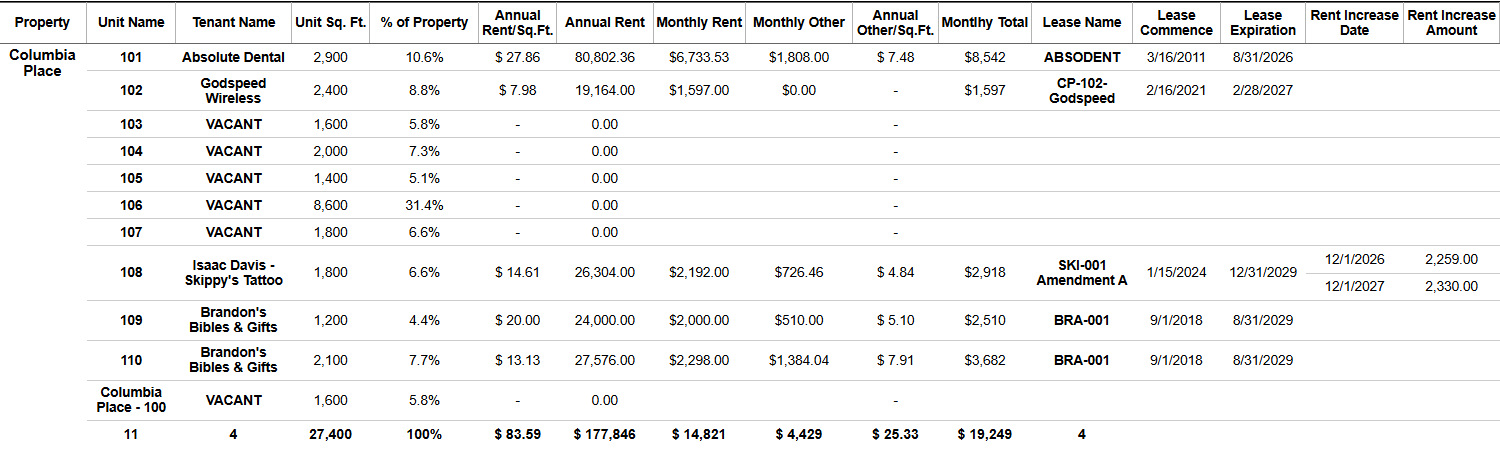
Expected Display
-
Results are grouped by Property
-
Each unit section shows current rent roll context together with lease-level details
-
Property summary panels reflect the same filters used in the detail section
-
Increase information appears only for leases with matching rent increase events in the reporting context
3. Technical Explanation
Date and Filter Behavior
This report provides a point-in-time rent roll view based on the selected As of Date and combines it with rent increase information tied to the leases returned in the report.
It does not show a monthly trend over time. Instead, it shows the current rent roll plus the increase events associated with the included leases.
This report applies filtering using the following parameters:
-
Entity ID
-
Property Name
-
Unit Floorplan
-
As of Date
-
Cut-off Date (if selected, only increases up to this date are included)
-
Month to Month
Table Structure
The report contains two main sections:
Property Summary Section
The summary section helps users review:
-
current occupied and vacant square footage
-
monthly revenue
-
annualized revenue measures
-
rent-per-square-foot metrics
Detail Section
The detail section shows:
-
unit and tenant context
-
lease information
-
current rent values
-
scheduled rent increase rows when available
The report is structured at the unit level because rent roll analysis depends on reviewing occupancy, square footage, and revenue by unit. It is grouped by property so users can see both detailed unit records and property-level summaries in the same output.
Granularity Explanation
The report combines square footage and revenue measures so users can review both current rent performance and upcoming increases that may affect annual revenue and rent-per-square-foot values.
The Rent Increase Date and Rent Increase Amount rows provide visibility into scheduled changes that affect future rent expectations.
4. Troubleshooting
No Data Returned
Possible causes:
-
The selected Property Name values are incorrect
-
The As of Date falls within a period where active leases or units do not exist for the selected properties
-
Filters such as Unit Floorplan or Month to Month are too restrictive
Possible fixes:
-
Confirm the selected Property Name values
-
Try a different As of Date
-
Remove optional filters and rerun the report
Expected Units or Leases Are Missing
Possible causes:
-
The units do not belong to the selected properties
-
The selected date does not reflect the lease period you want to review
-
The cut-off date or floorplan filter excludes the expected records
Possible fixes:
-
Verify that the units belong to the selected properties
-
Confirm the selected date range and floorplan filters
-
Adjust the filters and rerun the report
Rent Increase Information Does Not Appear
Possible causes:
-
Some leases may not have a rent increase event available in the report output
-
The selected Cut-off Date excludes the intended increase event
Possible fixes:
-
Review the selected Cut-off Date
-
Confirm that the lease has an increase within the intended review period
Annualized Amounts Seem Unexpected
Possible causes:
-
Annualized fields are derived from the current rent roll amounts shown in the report
Possible fixes:
-
Review the values shown for Monthly Rent, Monthly Other, and Montlhy Total
-
Compare the monthly amounts with the annualized fields shown in the same row
5. Customization
Possible enhancements for this report include:
Field and Layout Changes
-
Adding more lease or unit attributes to the detail section
-
Changing the grouping order for portfolio review
Summary Enhancements
-
Adjusting the property summary metrics
-
Adding additional increase-related columns or dates
Export and Reporting Improvements
-
Refining export formatting for leasing, asset management, or financial review
These modifications can be requested as a report customization through the customer portal.