
This guide explains how to export annual charges for specific properties from Sage Intacct Real Estate and upload them seamlessly as budgets into Sage Intacct. Following these steps will streamline your budgeting process, reduce errors, and save time.
Step 1: Generate a Projected Revenue Report
-
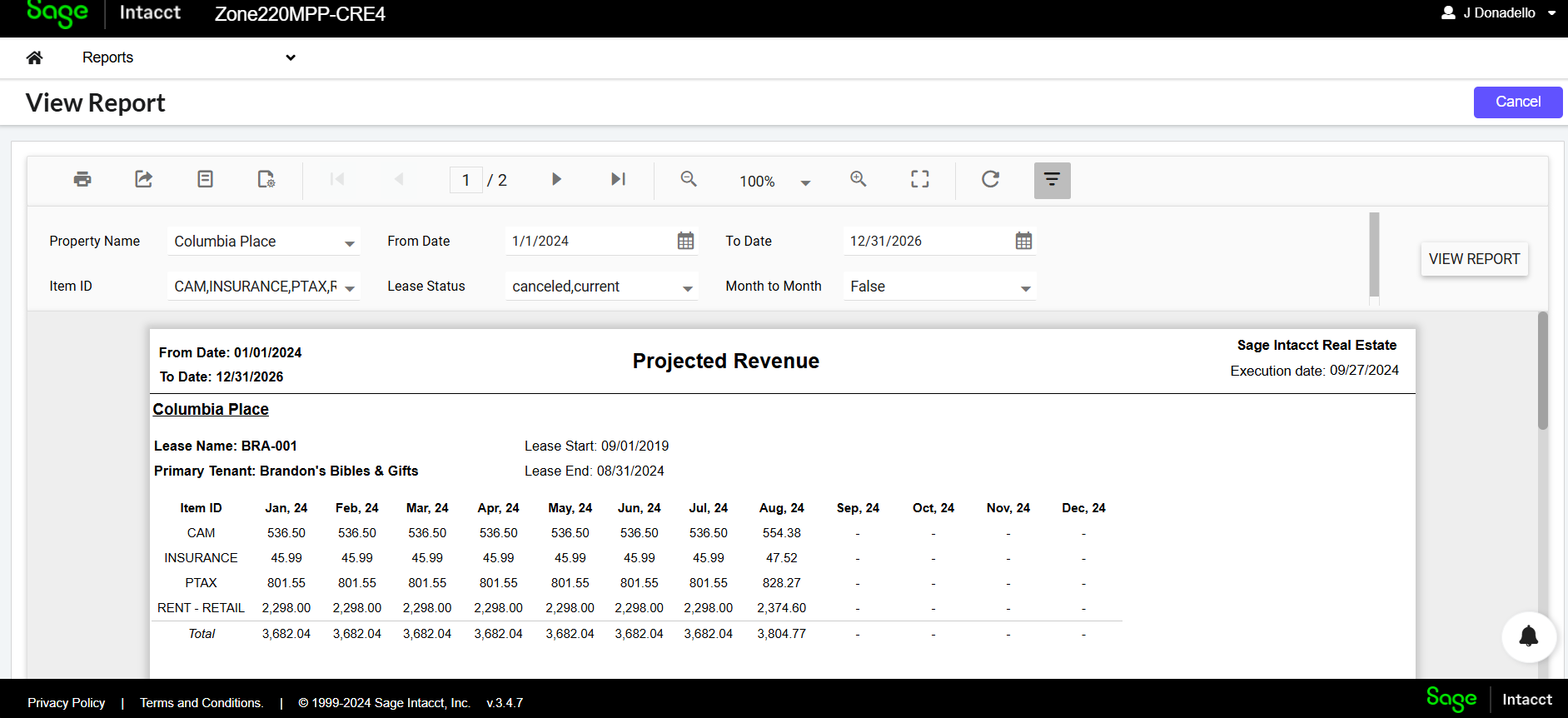
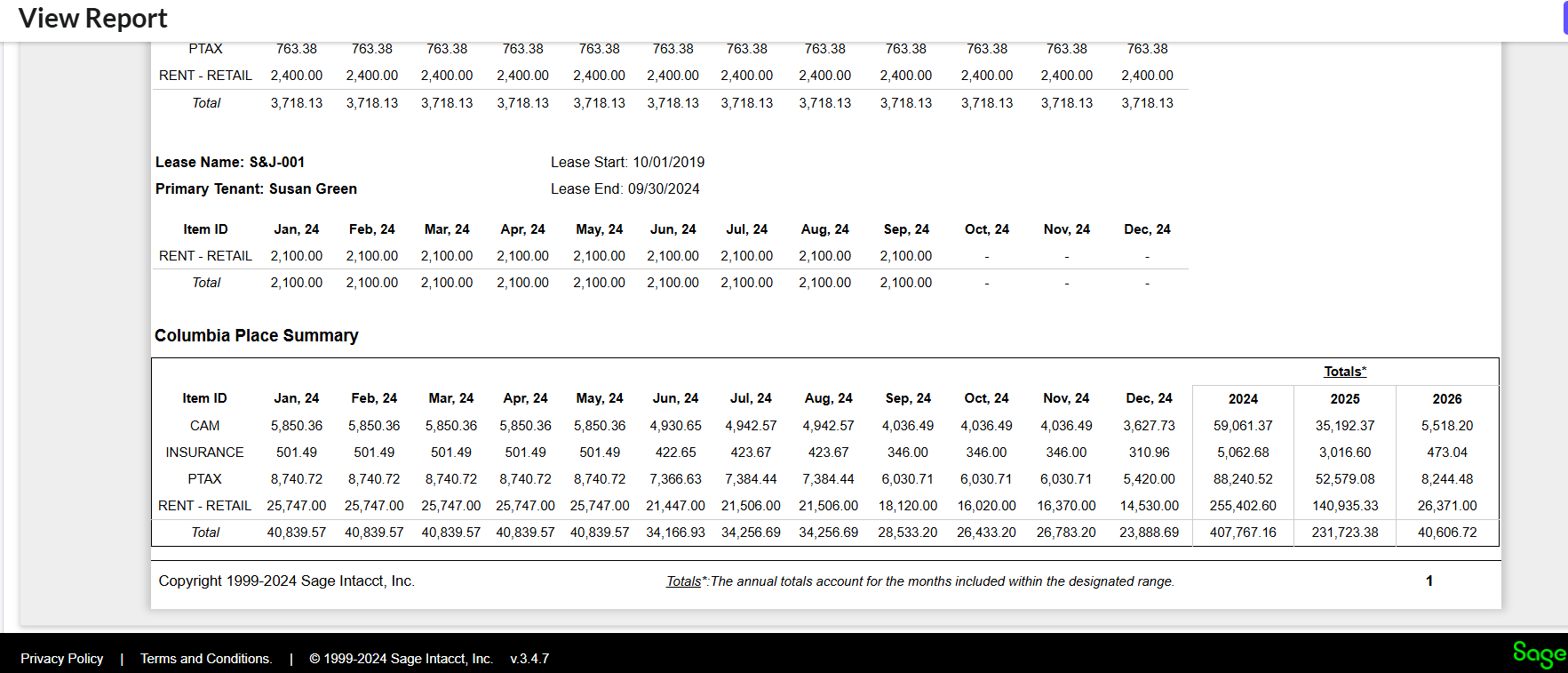
Purpose: This report provides a detailed month-over-month breakdown of lease charges across properties, helping you verify your revenue forecasts.
-
Process: Select the properties and download the report, which includes monthly and yearly summaries for each lease and property.
-
Export: Save the report for further analysis as needed.
Report sample
Step 2: Generate the Annual Budget Export
-
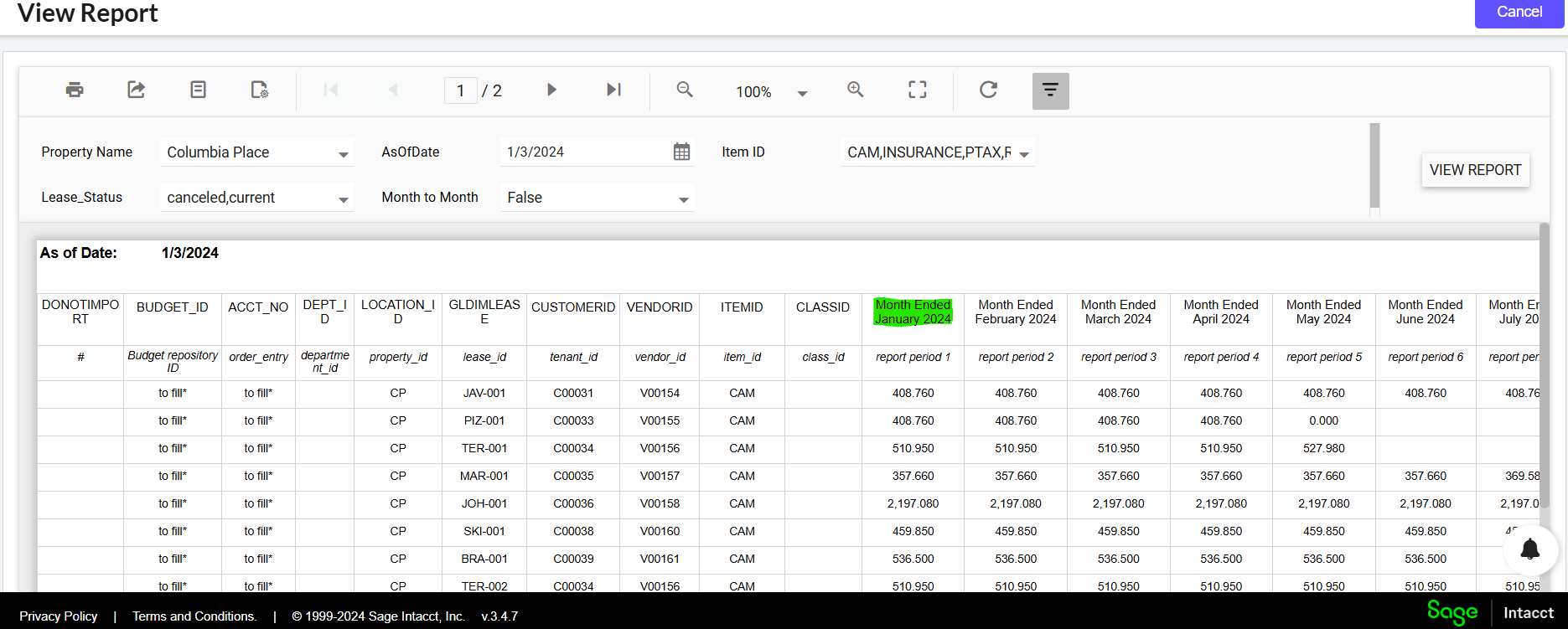
Purpose: This export retrieves one year of data in a Sage Intacct-compatible template format.
-
Setup: Select the "As of Date" to define the starting point for the one-year period.
-
Format: The "Reporting Period Name" column in the template will be auto-filled to match Sage Intacct’s format (e.g., "Month Ended January 2024").
-
Download: Export the file in Excel format.
Report Sample
Step 3: Prepare the File for Import
-
Open and Clean Up:
-
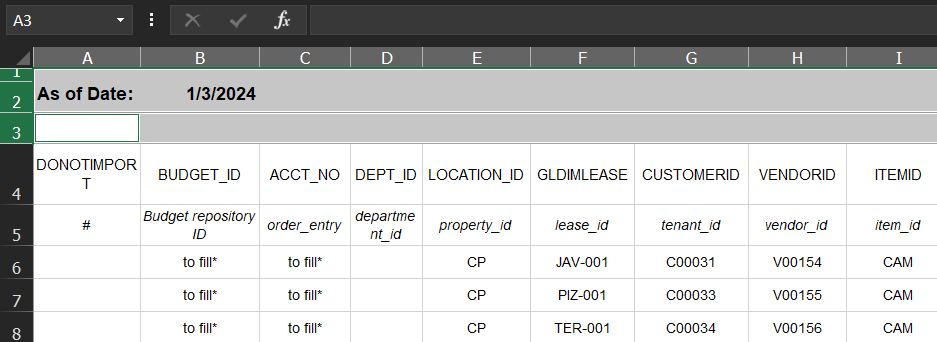
Open the Excel exported for the Annual Budget Export in the previous step.
-
Delete any extra rows to ensure the template headers start at the first row.
-
-
Populate Required Fields: to populate the Sage Intacct-specific fields, the date should correspond to your Intacct environment.
-
BUDGET_ID
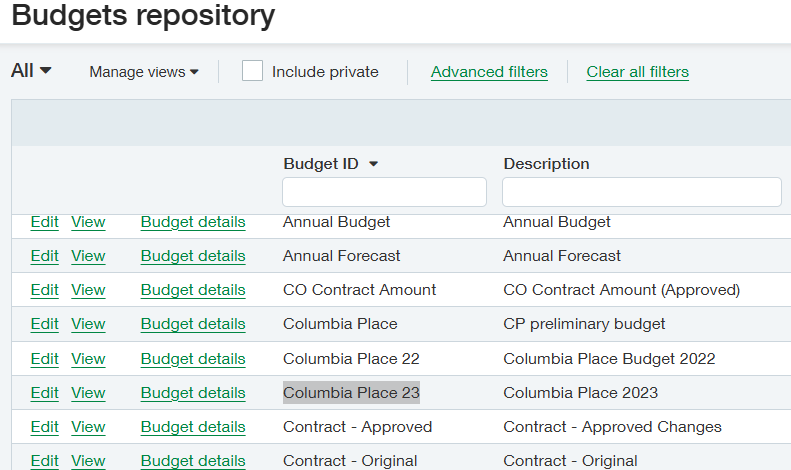
-
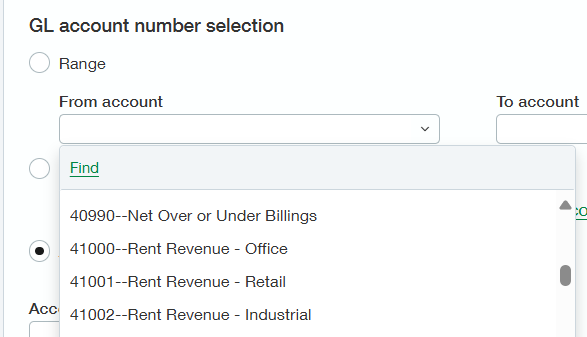
ACCT_NO
This refers to the General Ledger account number and can be acquired from multiple sources, for example:
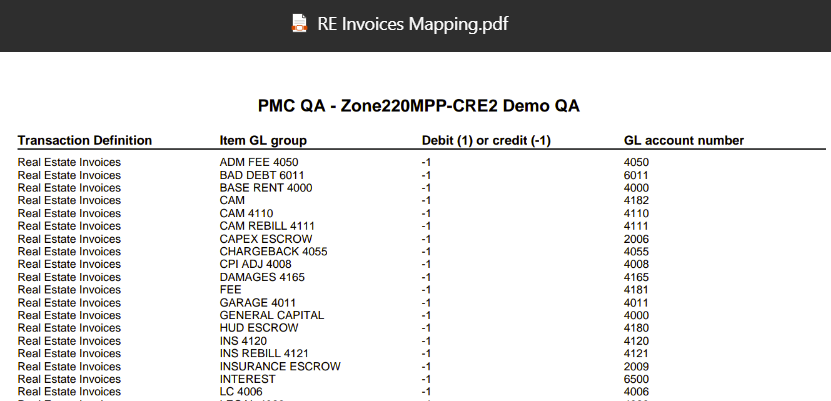
Also, you can create a Sage Intacct custom report for mapping the GL account number with the Item ID of RE app:
Finally, this is how the populated Excel should look like:

-
Save as CSV:
-
Save the file as a CSV, then reopen it to verify all columns are correctly formatted.
-
Delete any unnecessary columns to prevent import errors, as seen in column adjustments.
-
-
Verify CSV Integrity:
-
Open the CSV in a text editor to confirm the delimiter format (e.g., comma or semicolon).
-
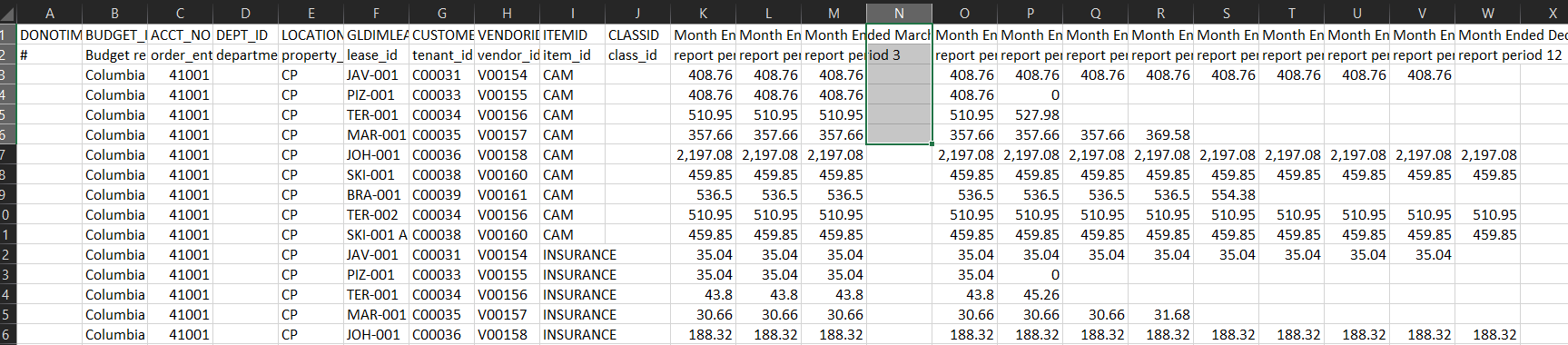
We see everything is correct except for column N that is blank. Column M corresponds to March and column O to April (for this AsOfDate), so we just need to delete the column N to avoid any import failures.
After that modification we resave it as .csv format.
Step 4: Create Reporting Periods in Sage Intacct
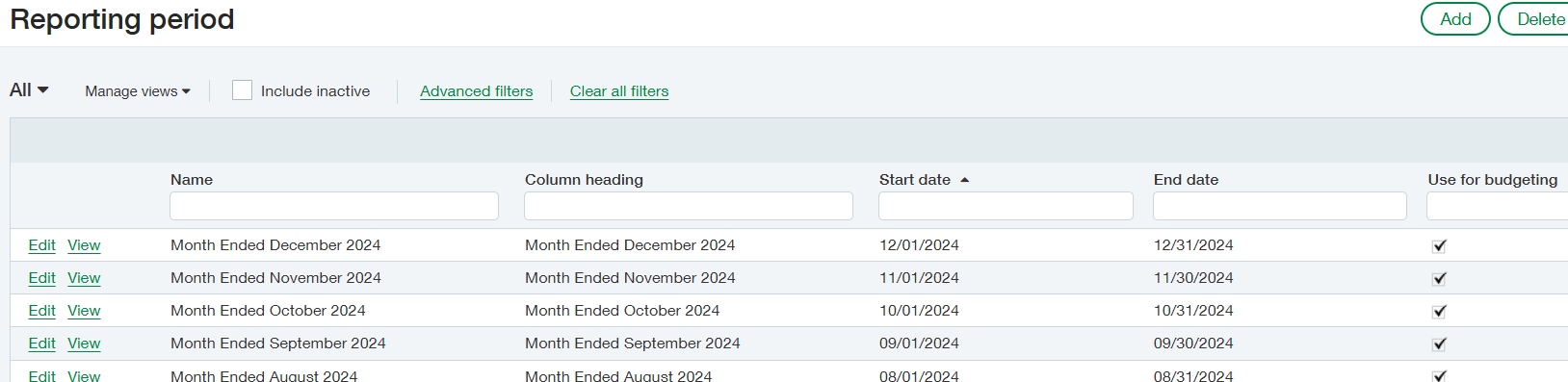
All reporting periods referenced in your template must already exist or be created in Sage Intacct to avoid import errors. To set up reporting periods, go to Reports > Reporting Periods in Sage Intacct.
Step 5: Import the Budget File
-
Navigate to Import Section:
-
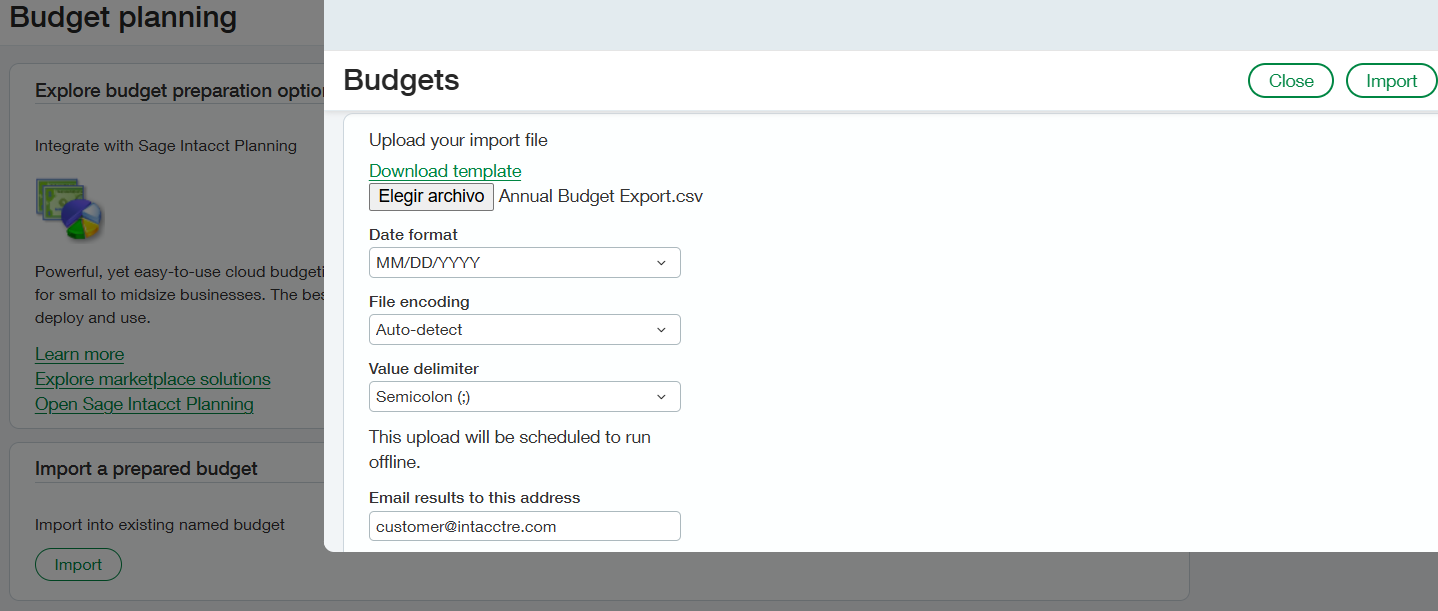
Go to Budget > Budget Planning or Budget Repository in Sage Intacct.
-
-
Choose Value Delimiter:
-
Use a text editor to check the CSV delimiter format and select the correct delimiter option during import.
-
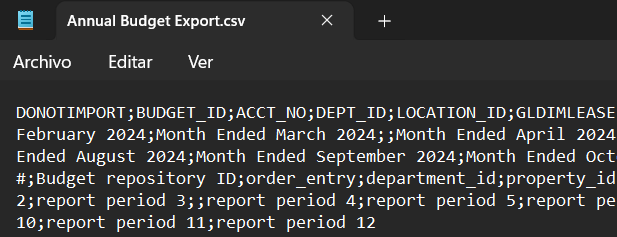
There can be seen that a semicolon (' ; ') is the correct separator.
-
Import and Confirmation:
-
Import the file, and a confirmation email will be sent to you indicating import success or errors.
-